Help
Get game ready.
Short films, one step each. Watch them in order, or jump to what you need.
 1:14
Start here
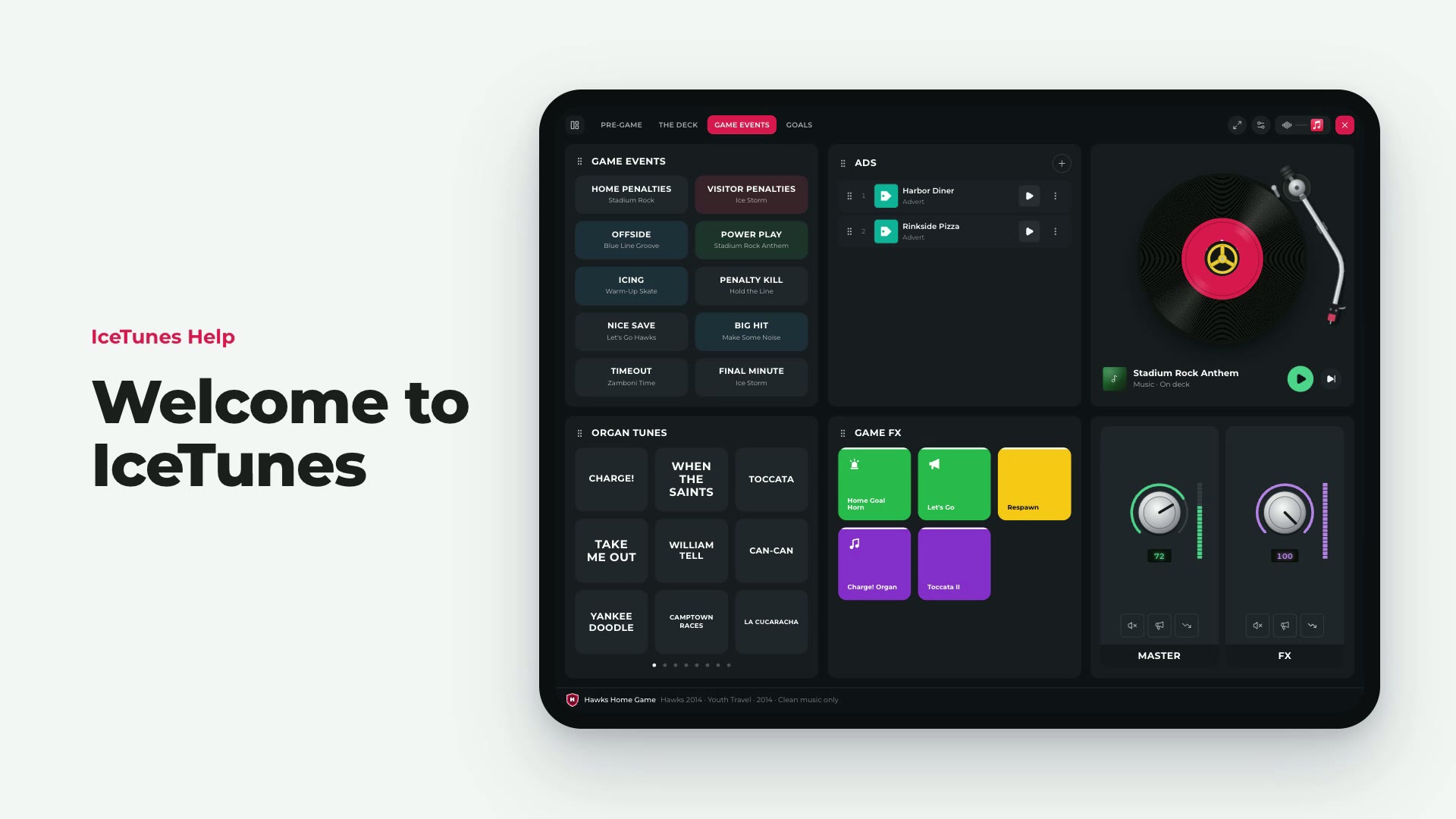
Welcome to IceTunes
What a soundboard is, and how a game night runs.
Start here
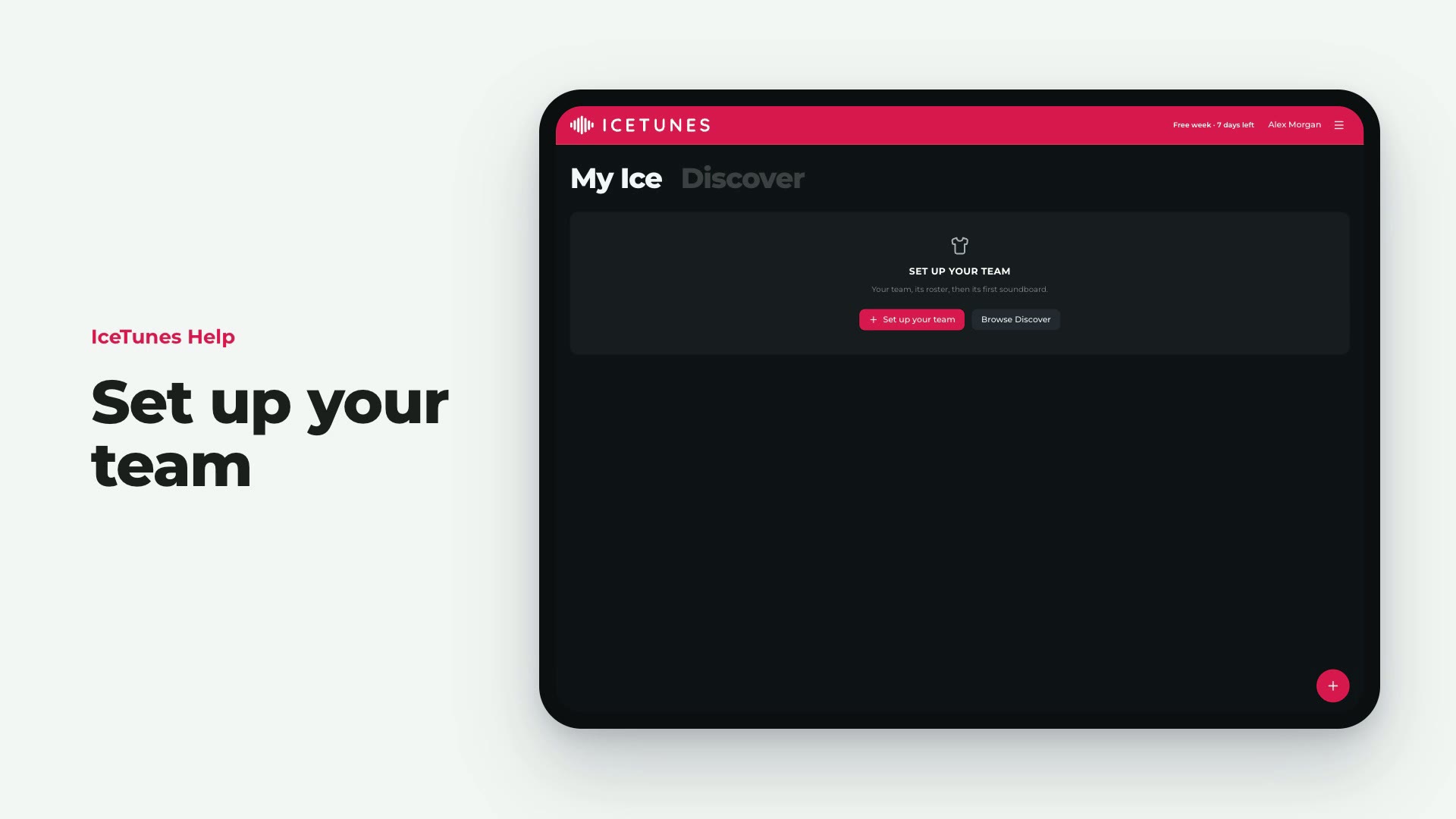
From sign-up to a soundboard, in minutes.
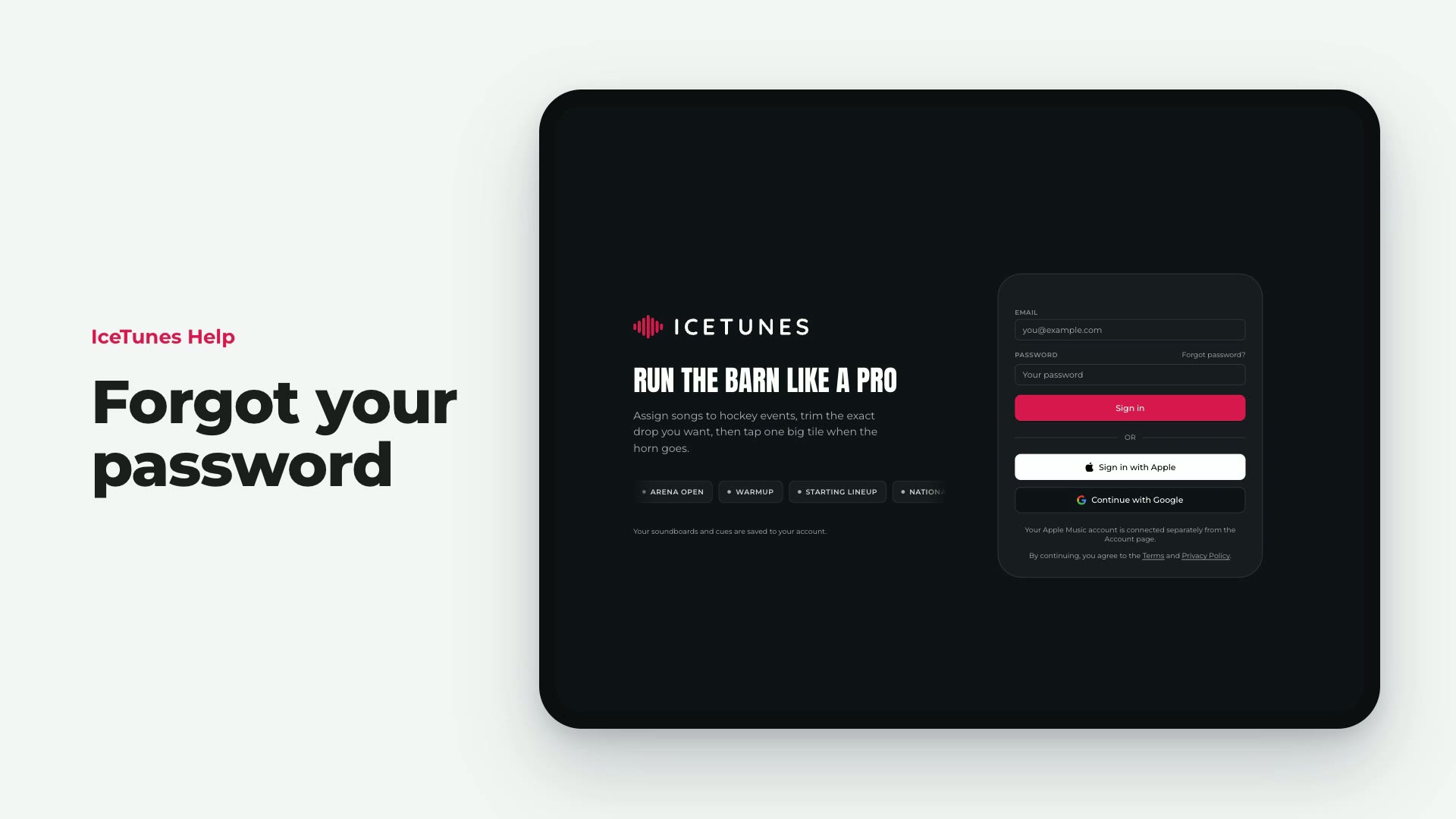
Your music and sounds
Fill the board, your way.
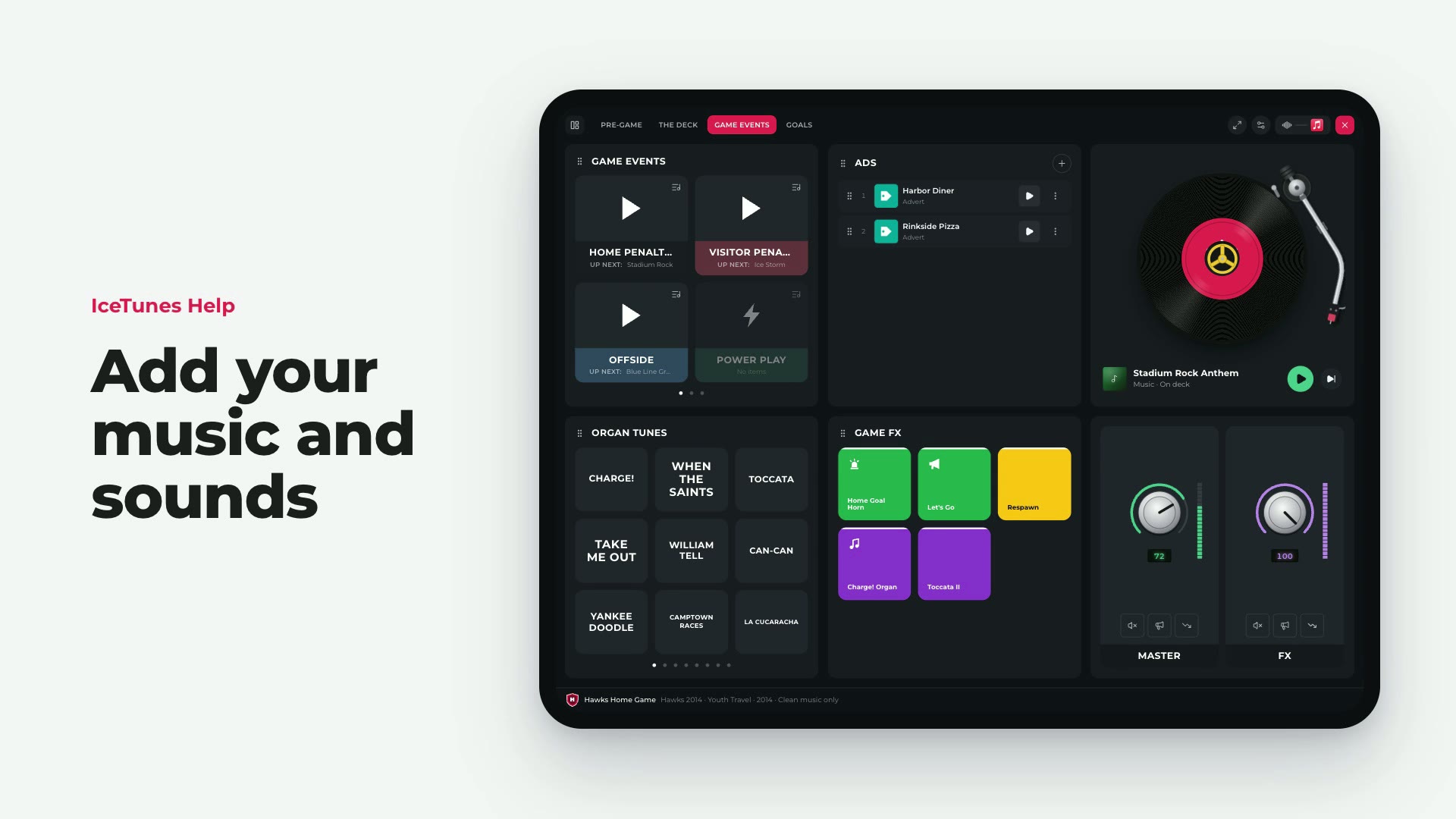 1:26
Step 3
Add your music and sounds
Four ways to fill a tile, from your own files to Apple Music.
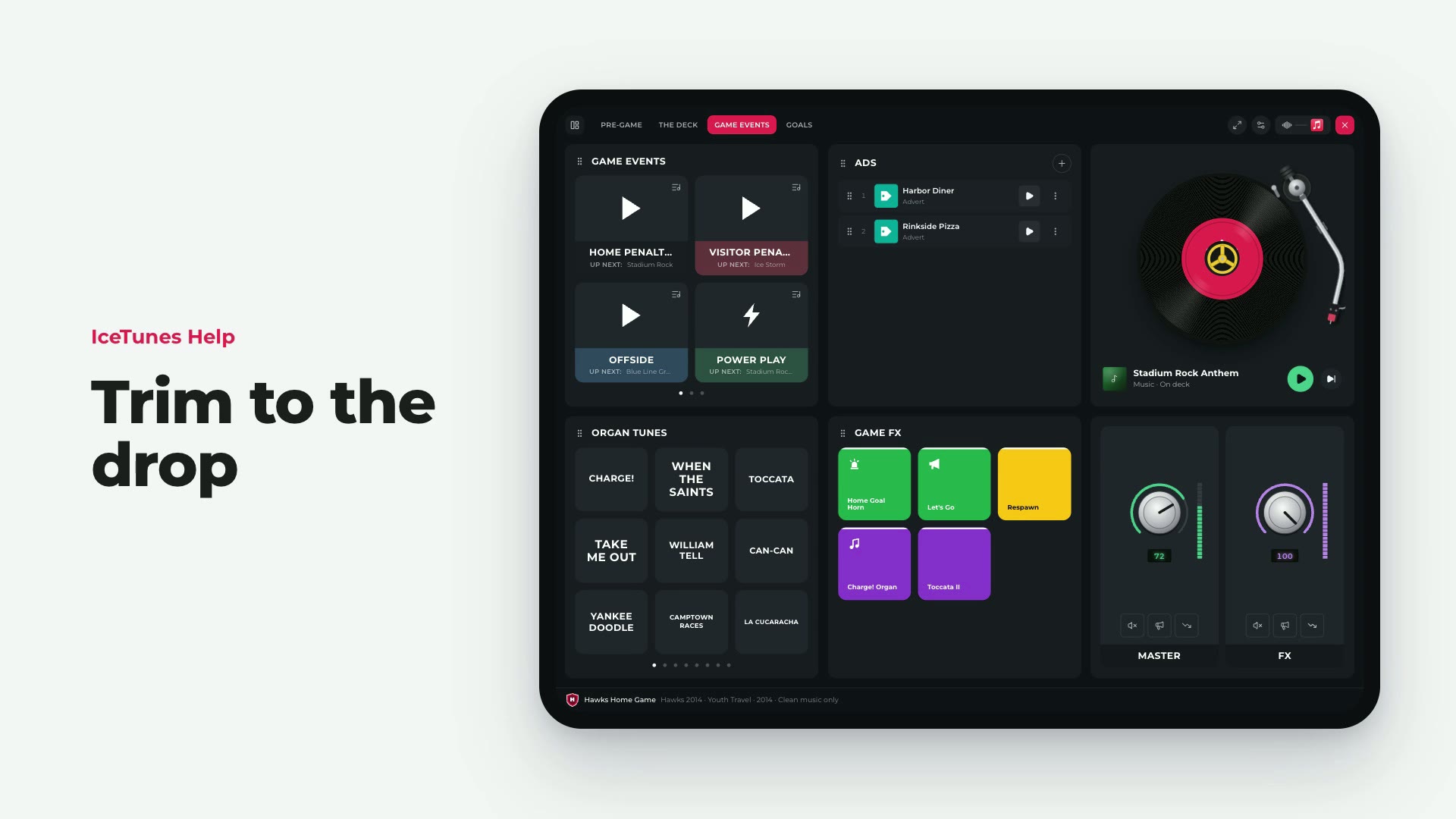 1:07
Step 4
Trim to the drop
Start every song at its best moment.
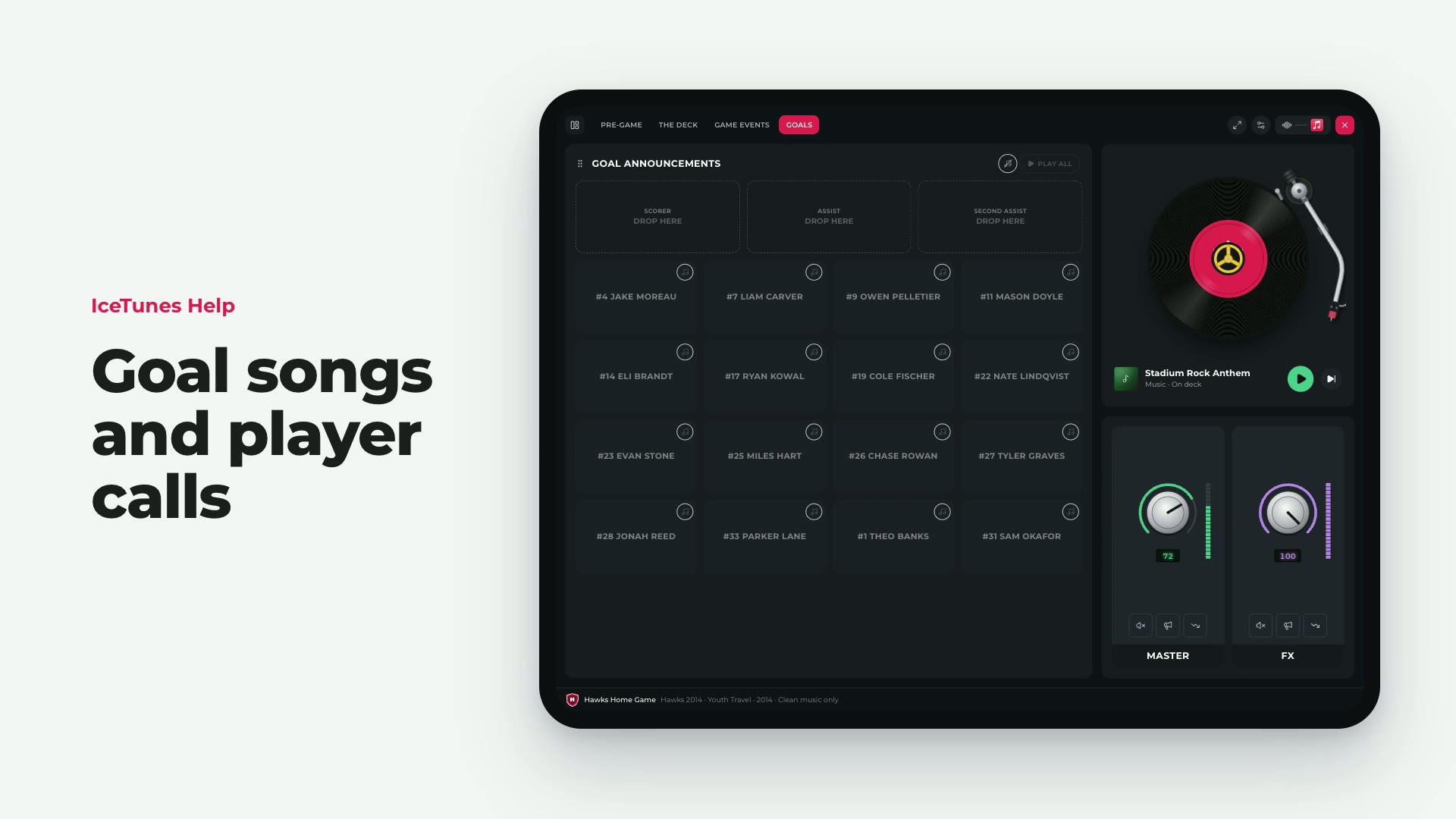 1:12
Step 5
Goal songs and player calls
Every player announced, every goal celebrated.
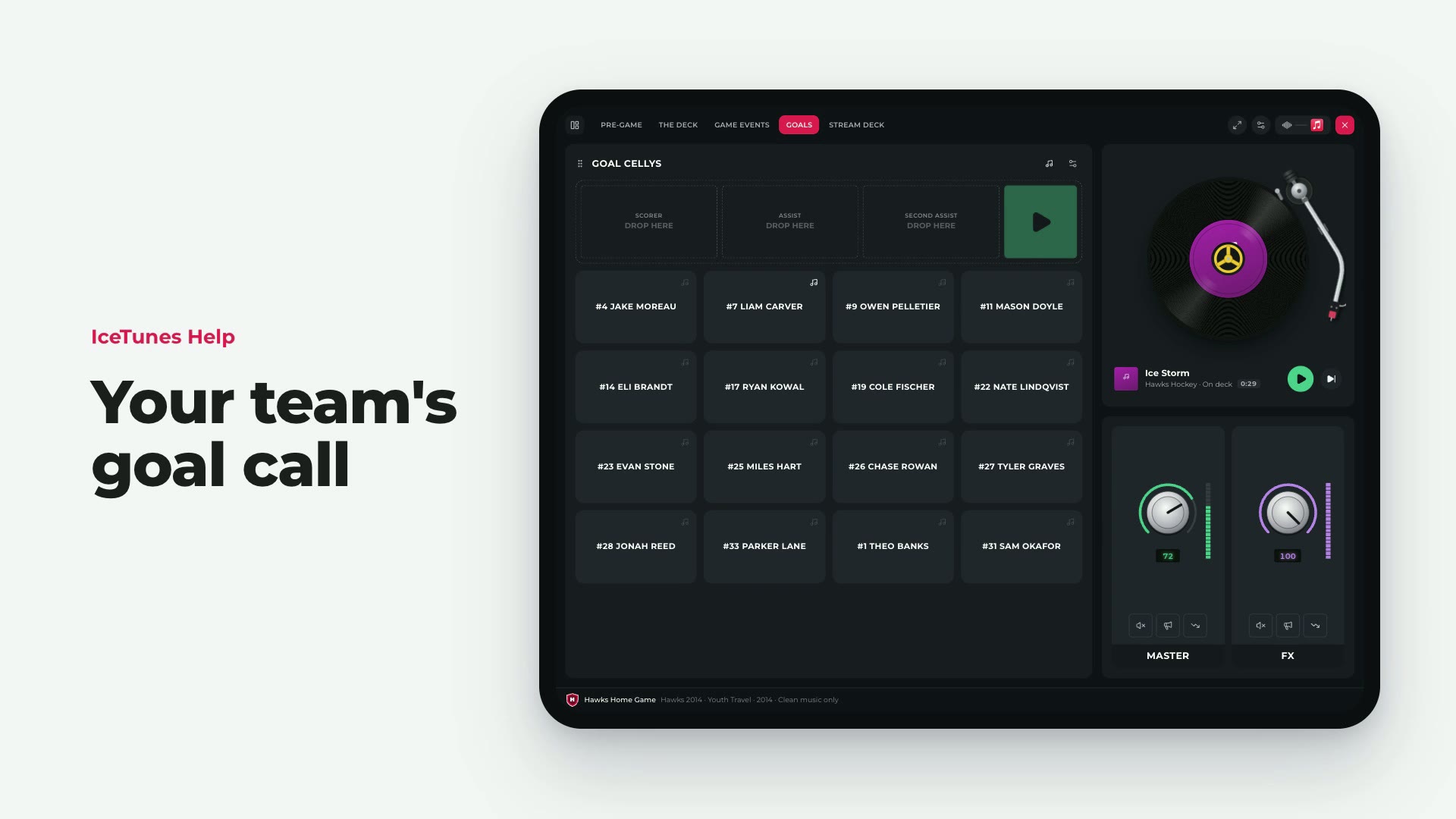 1:04
Step 6
Your team's goal call
Your announcer, your words, your music under every goal.
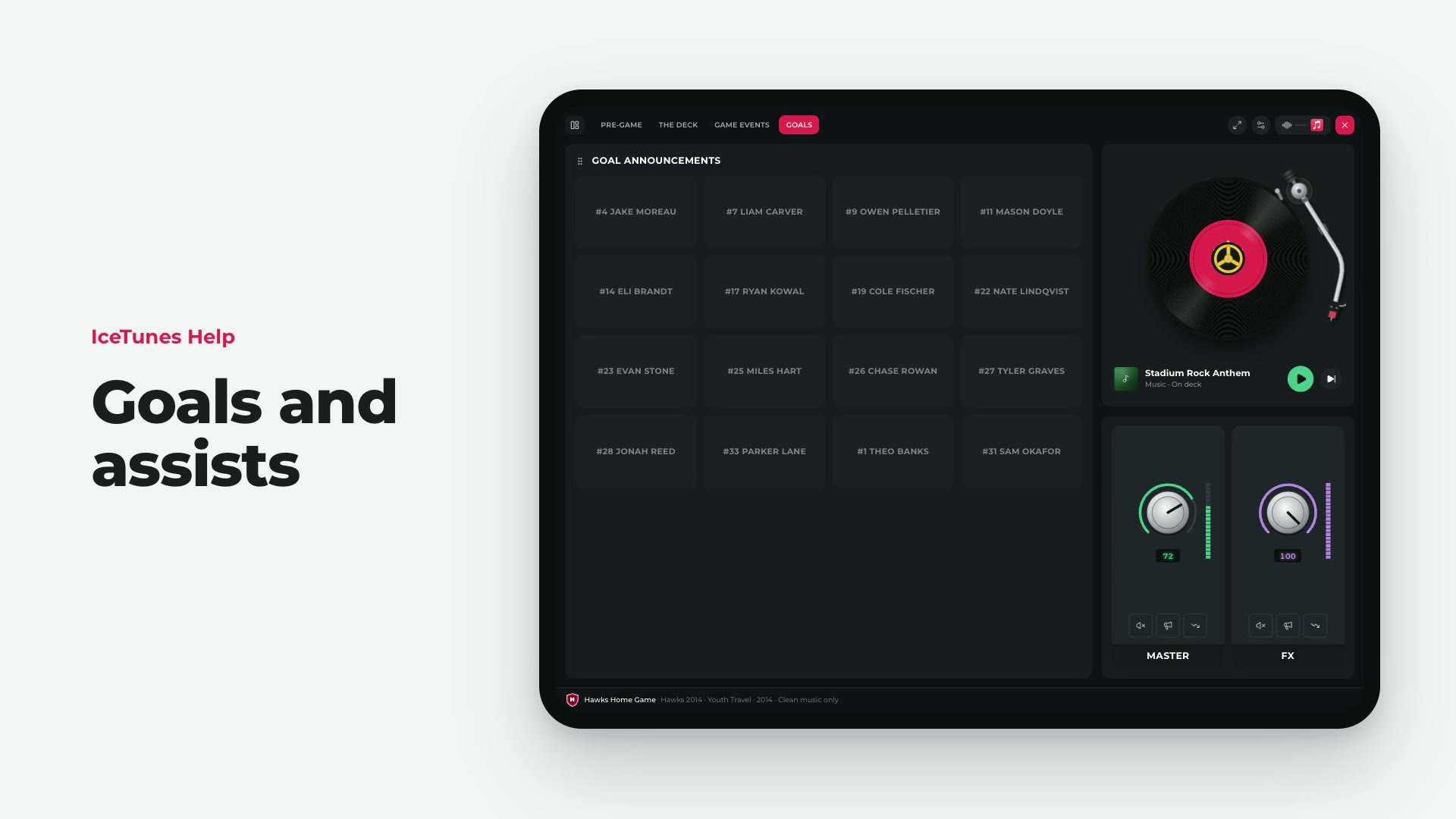 1:28
Step 7
Goals and assists
The scorer and the assists, read the PA way.
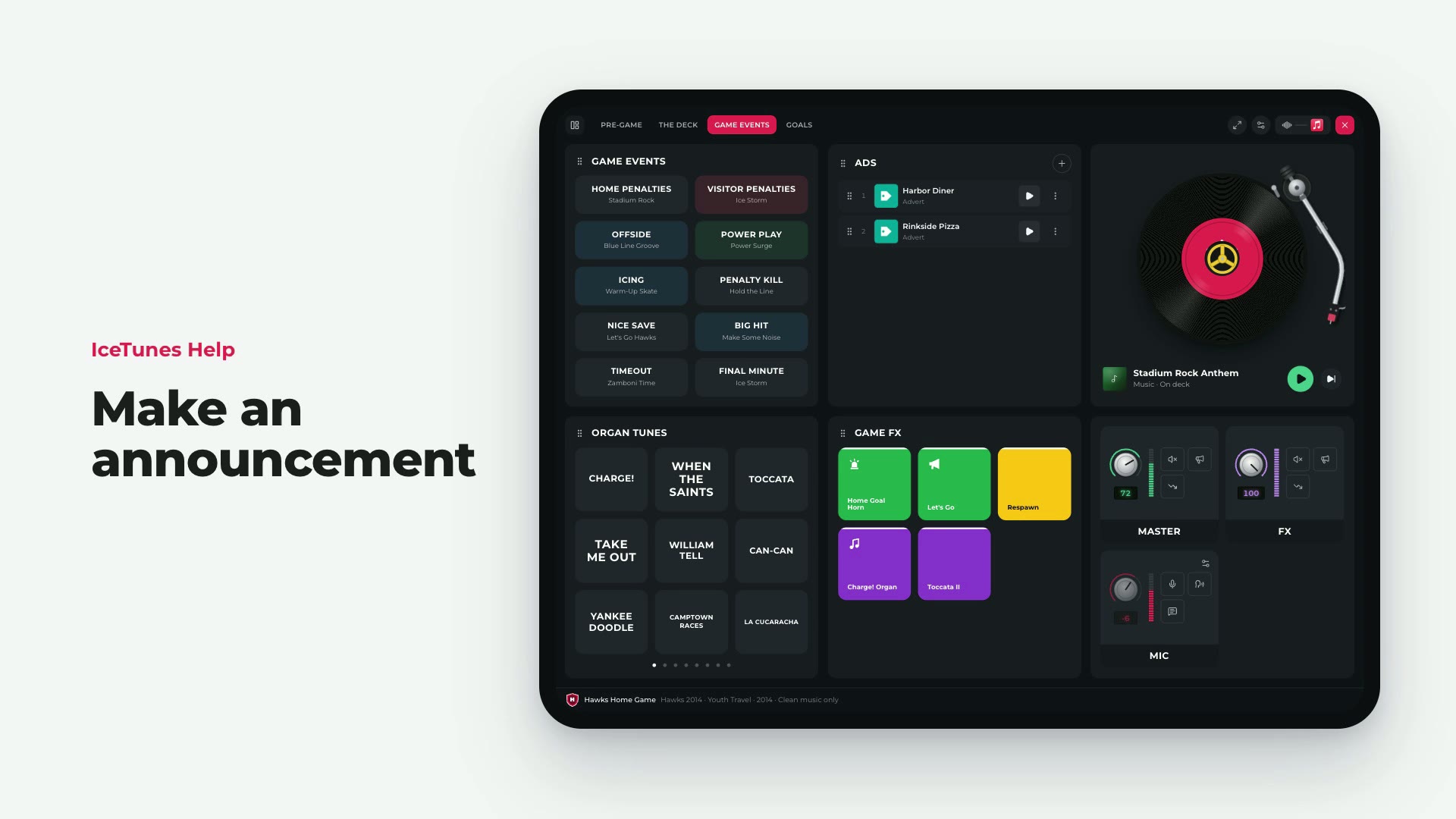 1:16
Step 8
Make an announcement
Type it, hear it, play it on the PA.
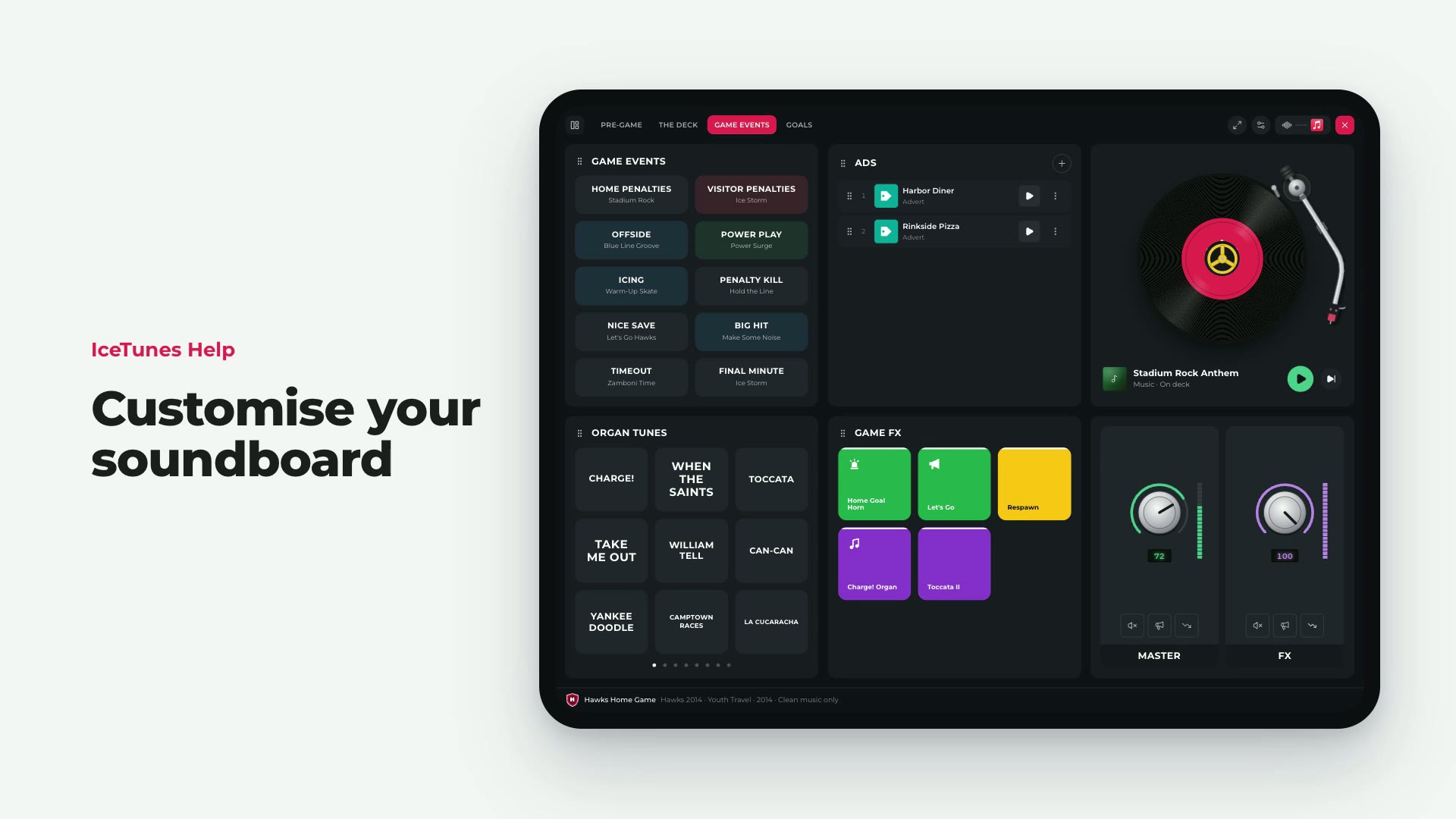 1:10
Step 15
Customise your soundboard
Your layout, your boards.
 1:05
Step 16
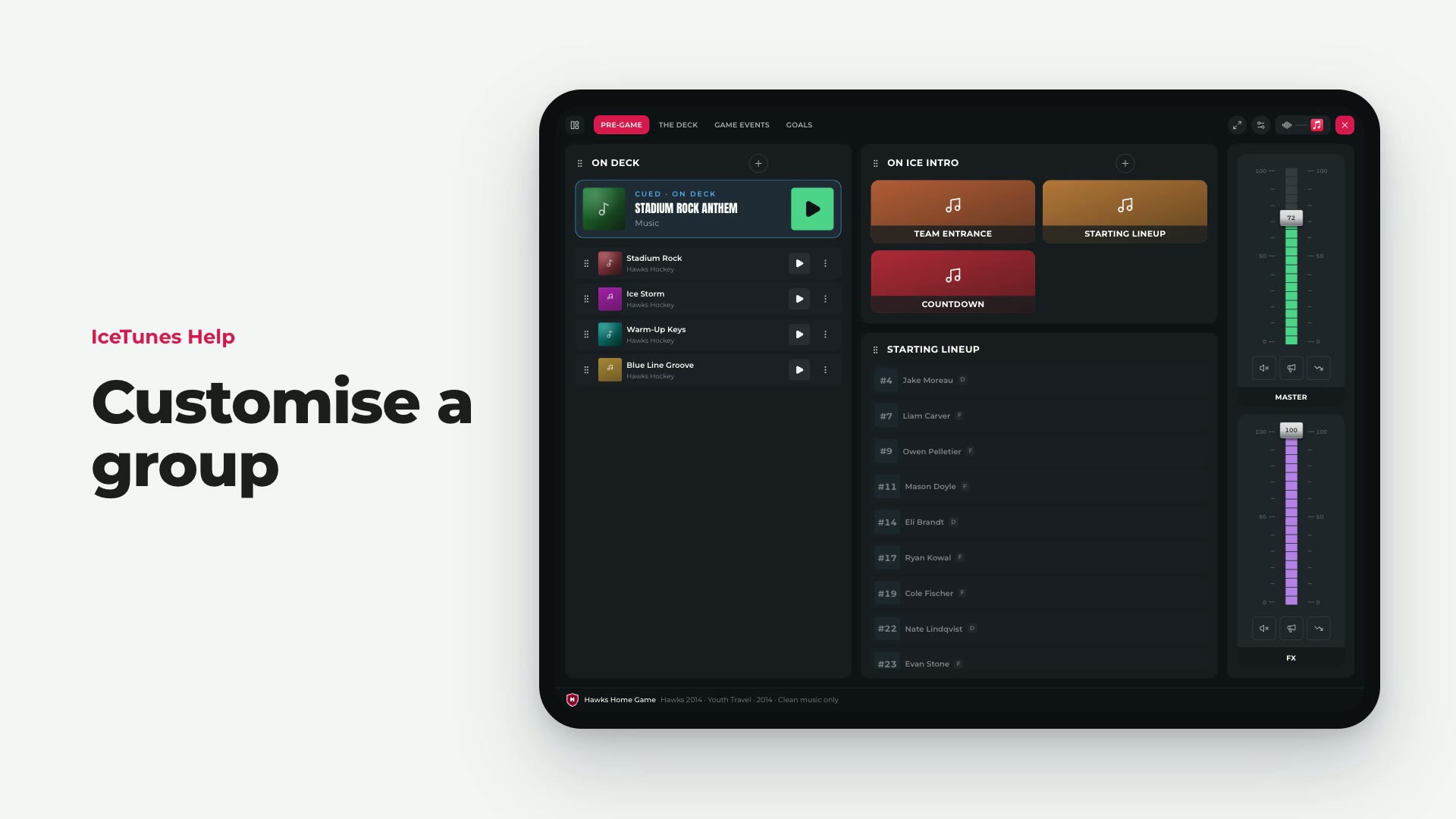
Customise a group
How it looks, how it plays.
 1:01
Step 17
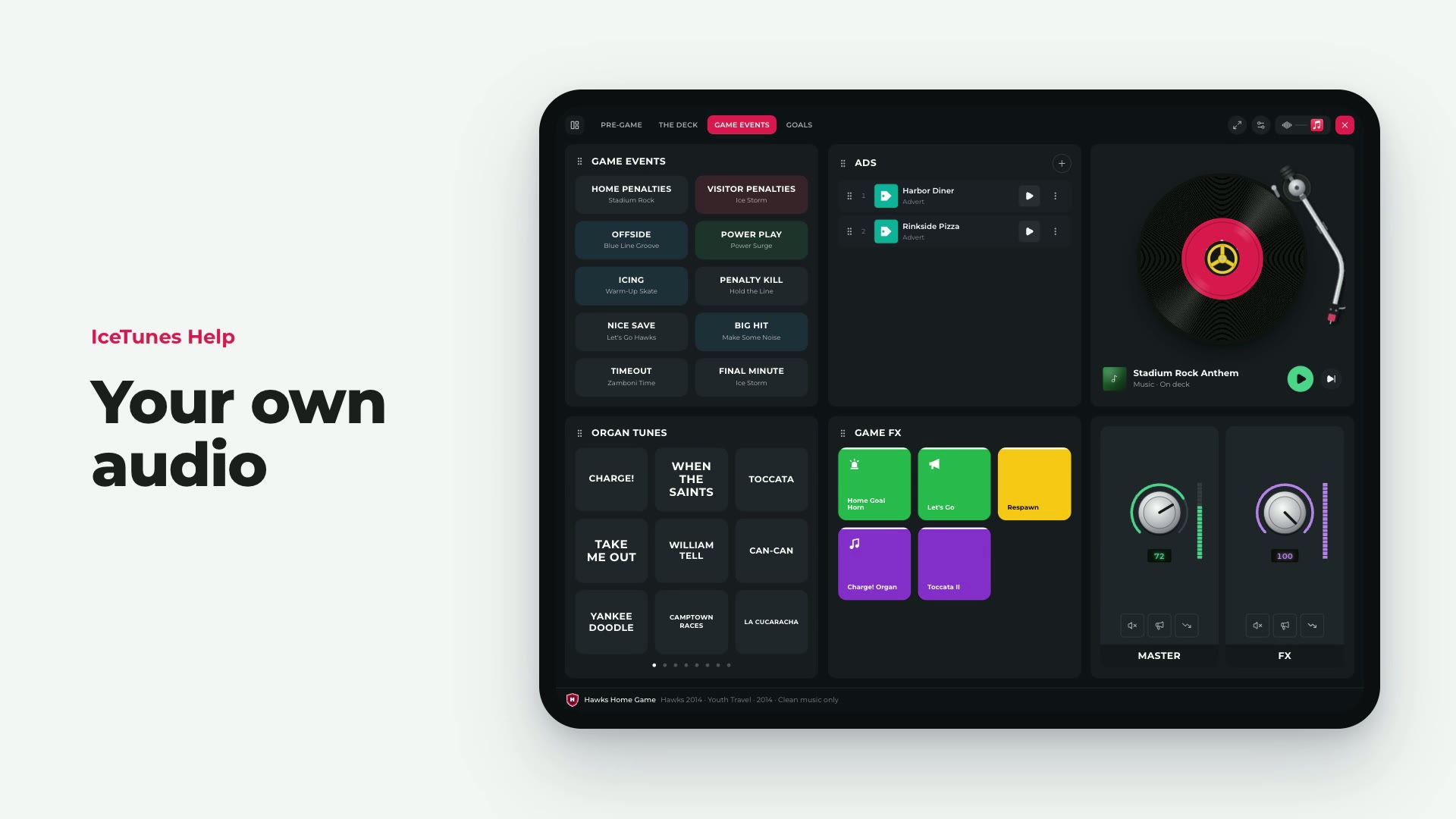
Your own audio
Ads, reads, effects and music.
 1:01
Step 18
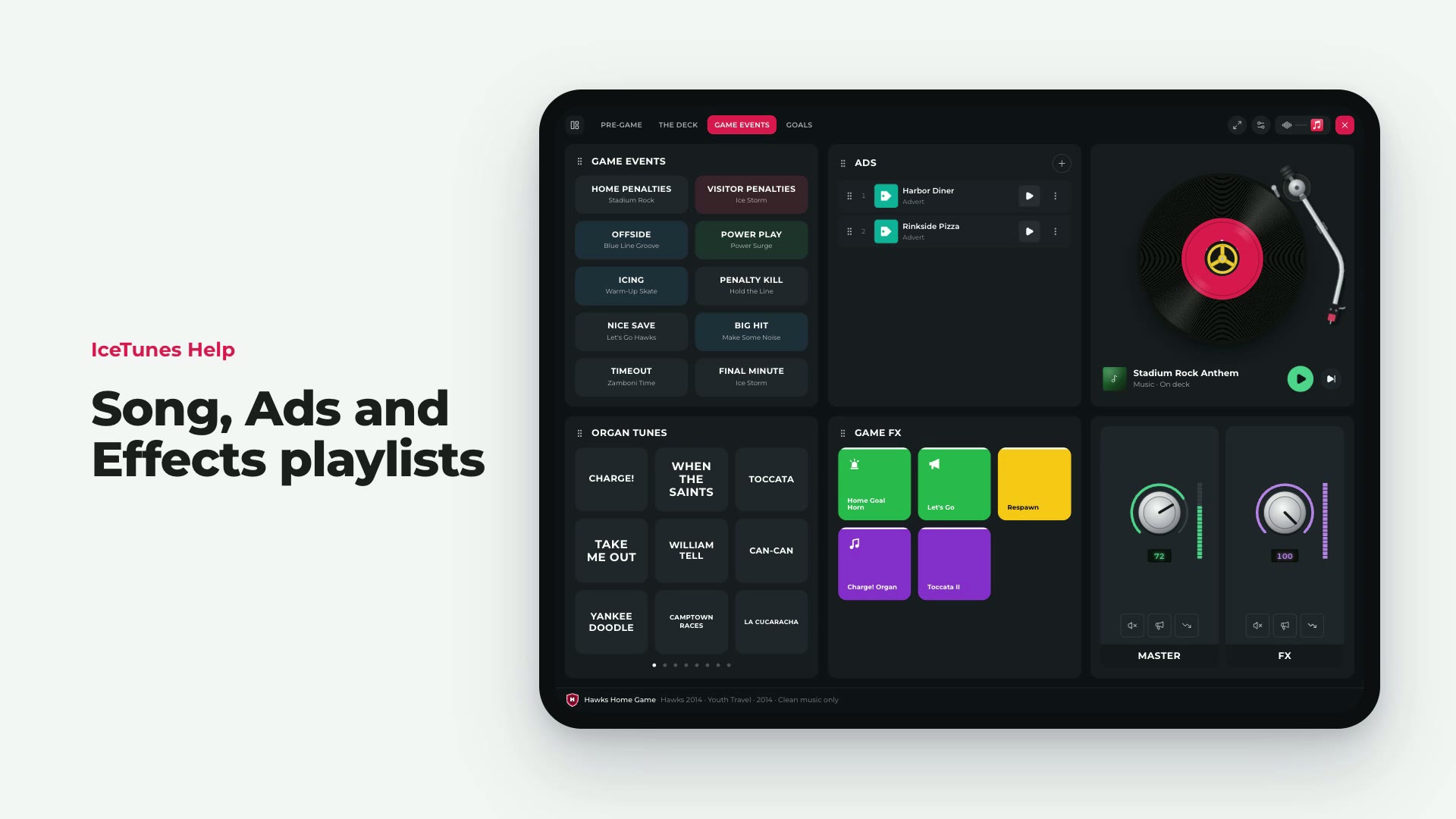
Song, Ads and Effects playlists
Three kinds, three ways to play.
 1:00
Step 25
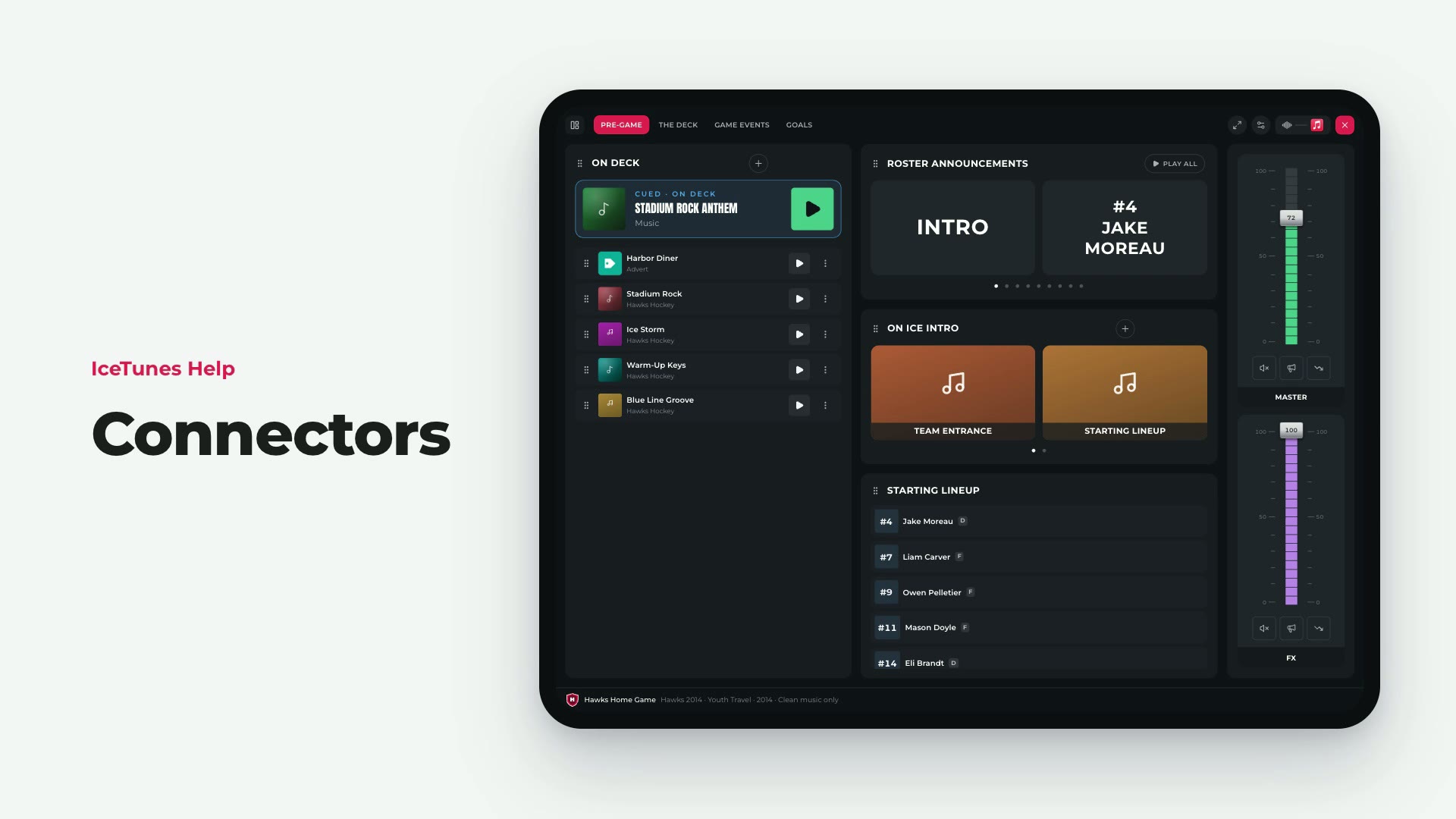
Connectors
An ad or effect, right into a song.
 0:54
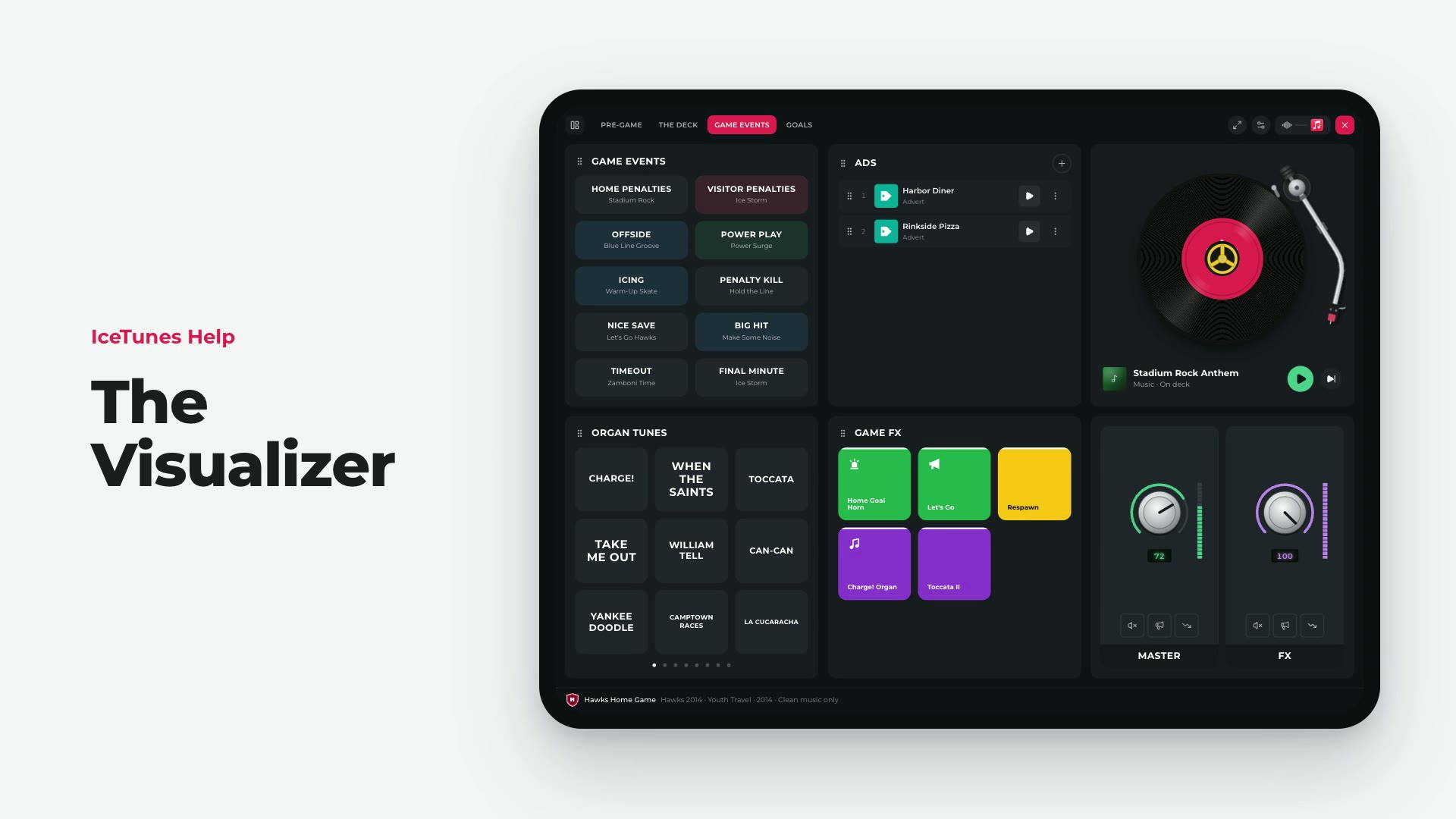
Step 28
The Visualizer
The song on the deck, for the whole booth.
 0:42
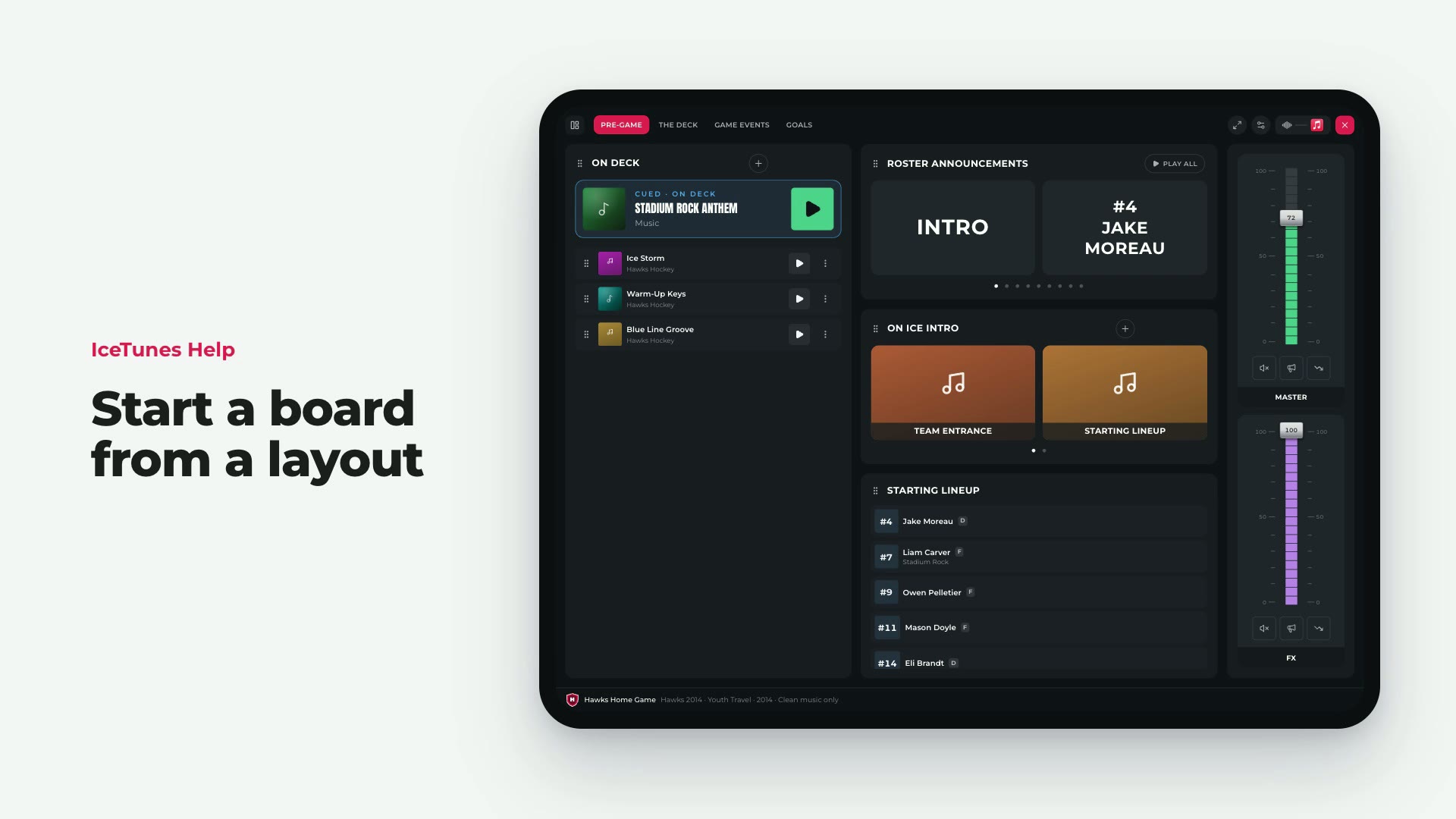
Step 29
Start a board from a layout
A new board's shape, in one tap.
 0:42
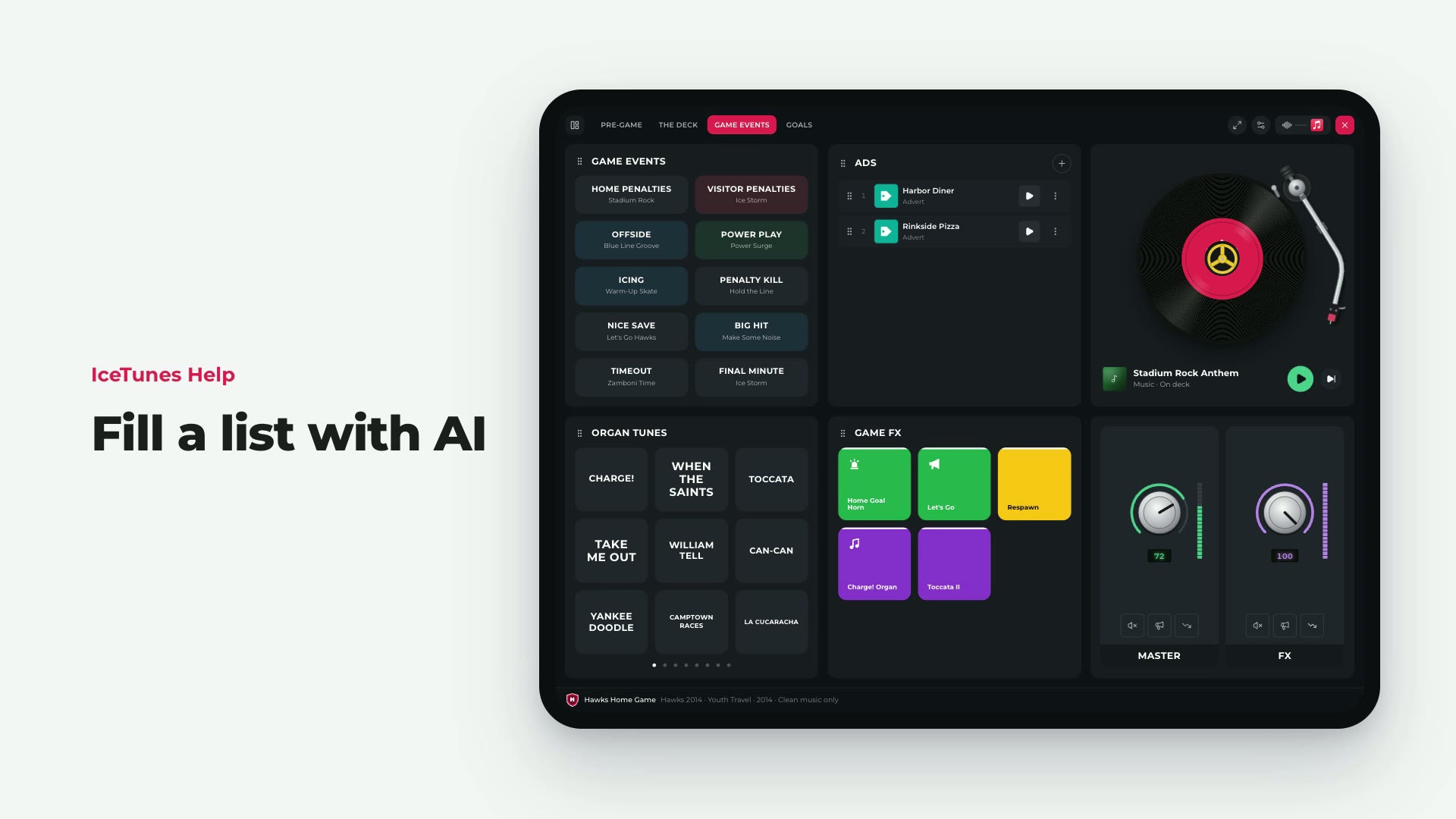
Step 30
Fill a list with AI
Songs picked for the moment.
 0:55
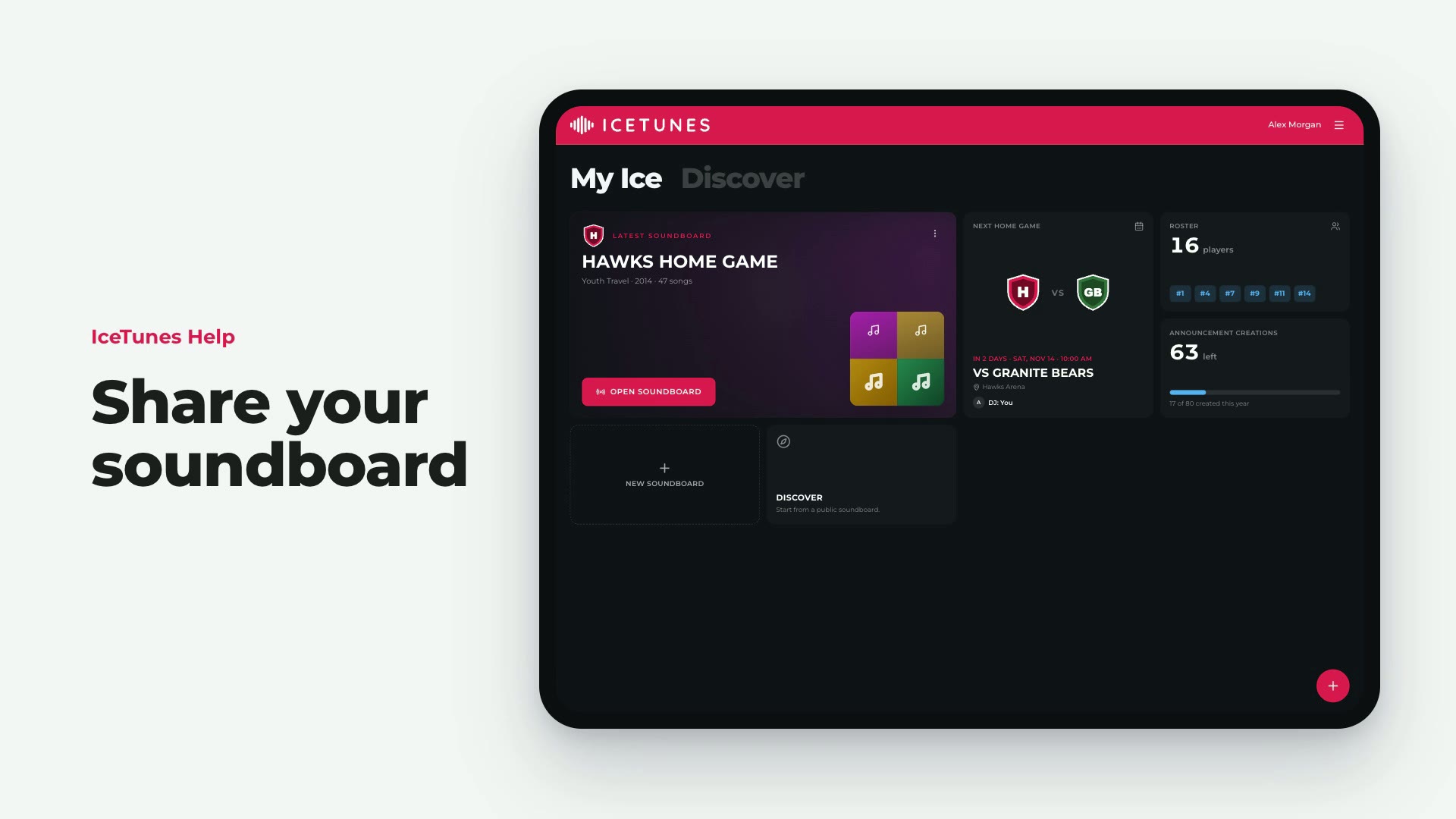
Step 35
Share your soundboard
Public in Discover. Rosters stay yours.
 0:42
Step 38
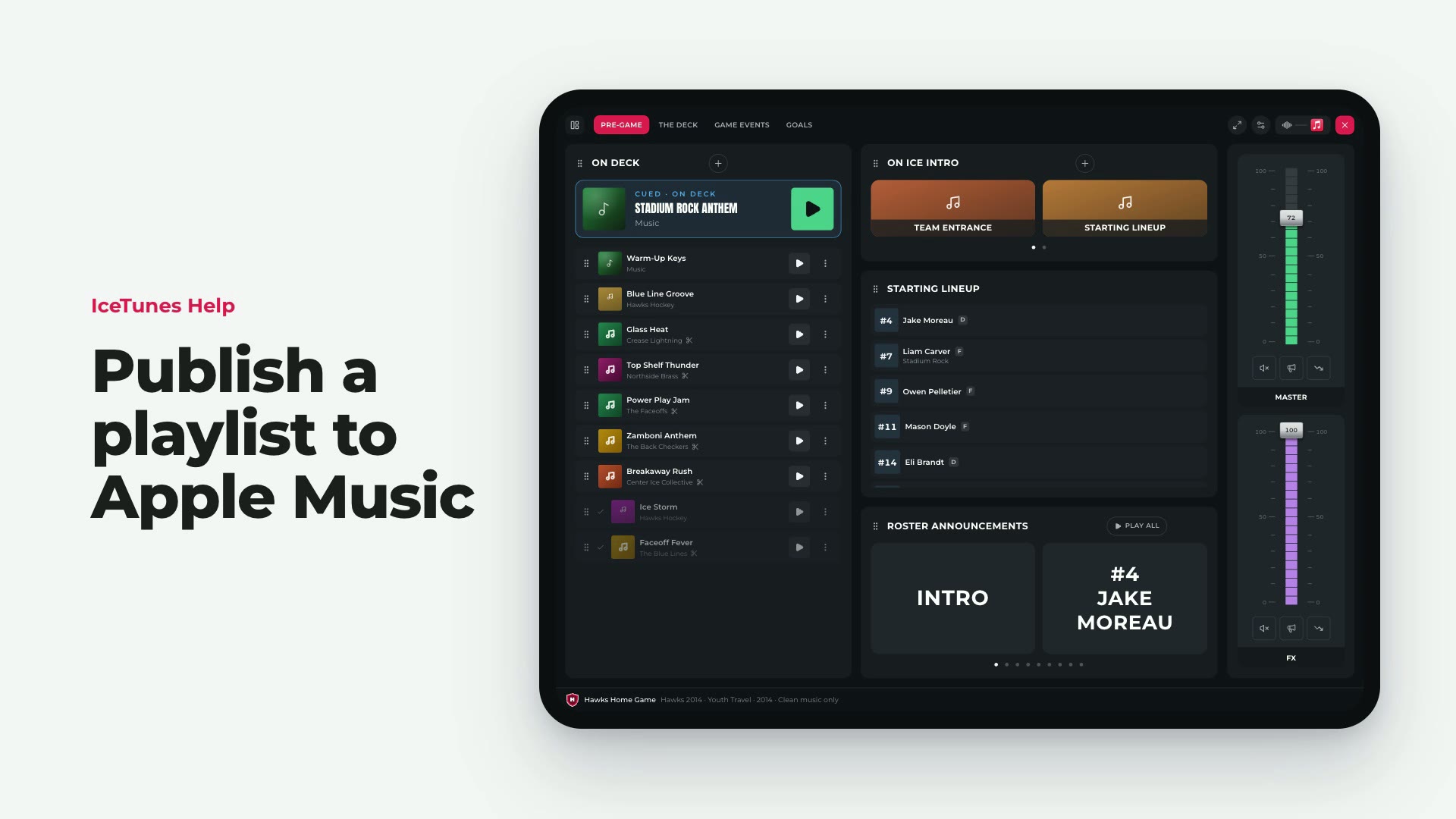
Publish a playlist to Apple Music
Keep a playlist in your library.
 0:56
Step 41
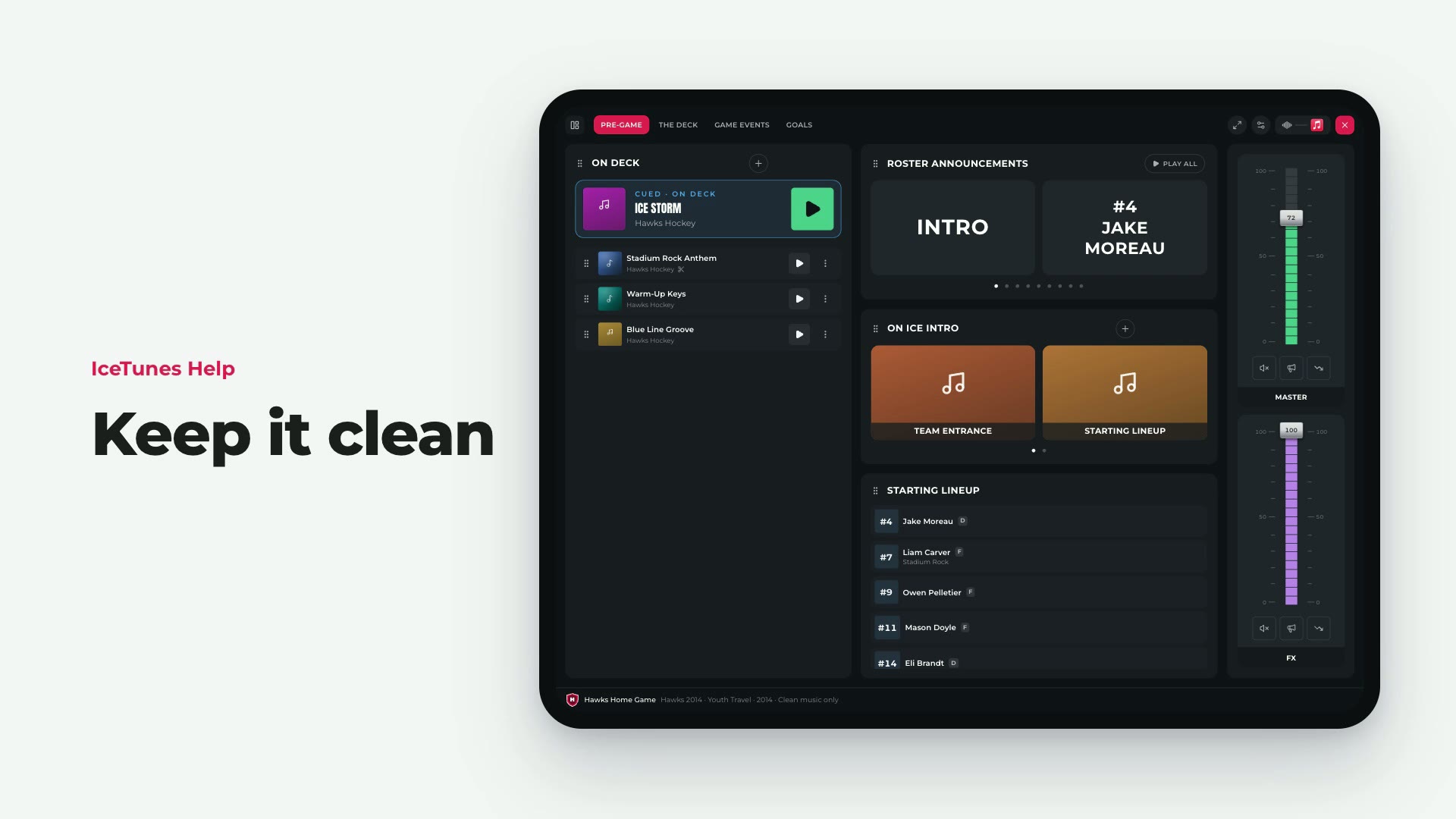
Keep it clean
Explicit songs never fire.
 0:45
Step 46
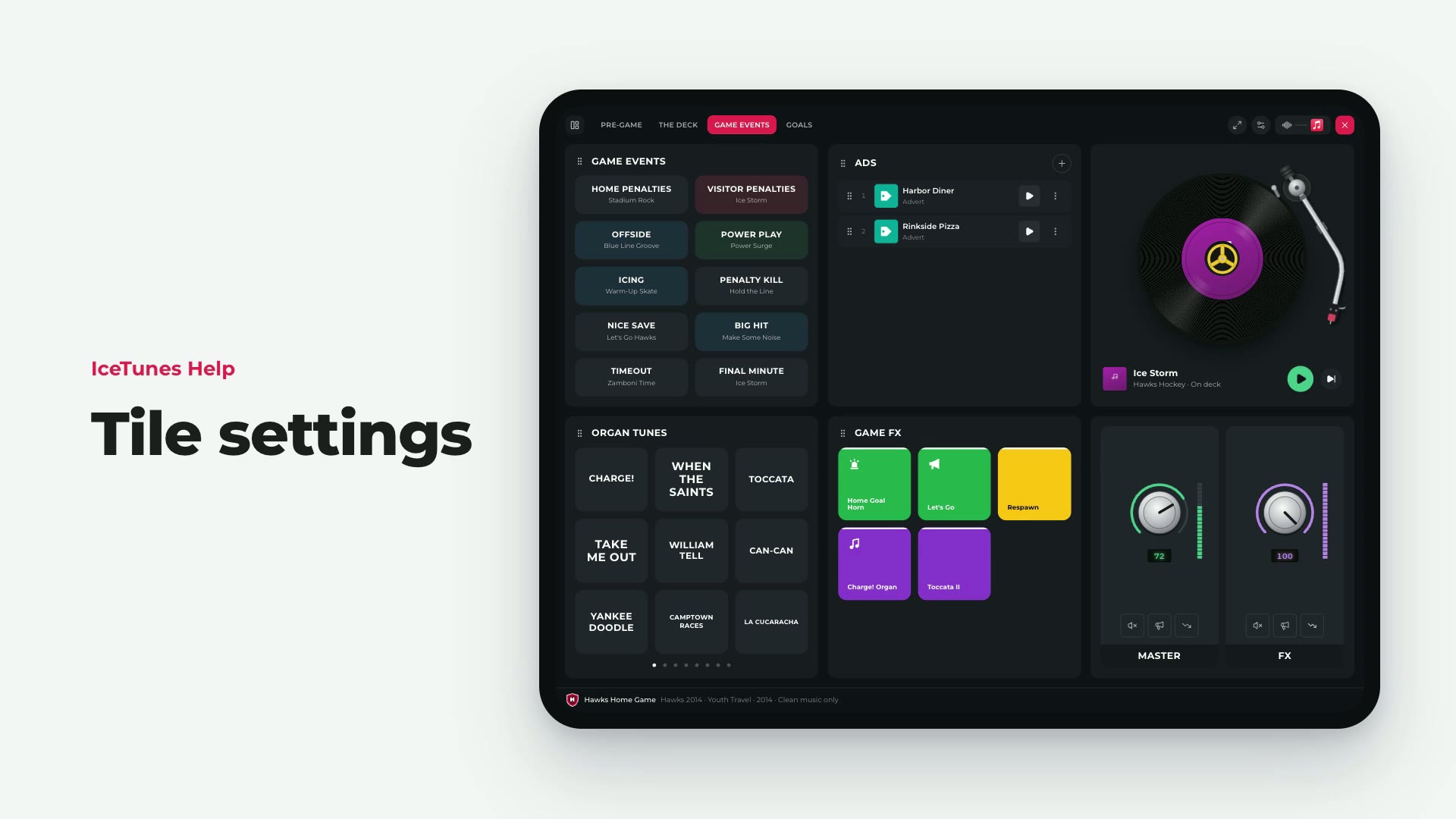
Tile settings
One song, Rotate or Shuffle.
 0:36
Step 47
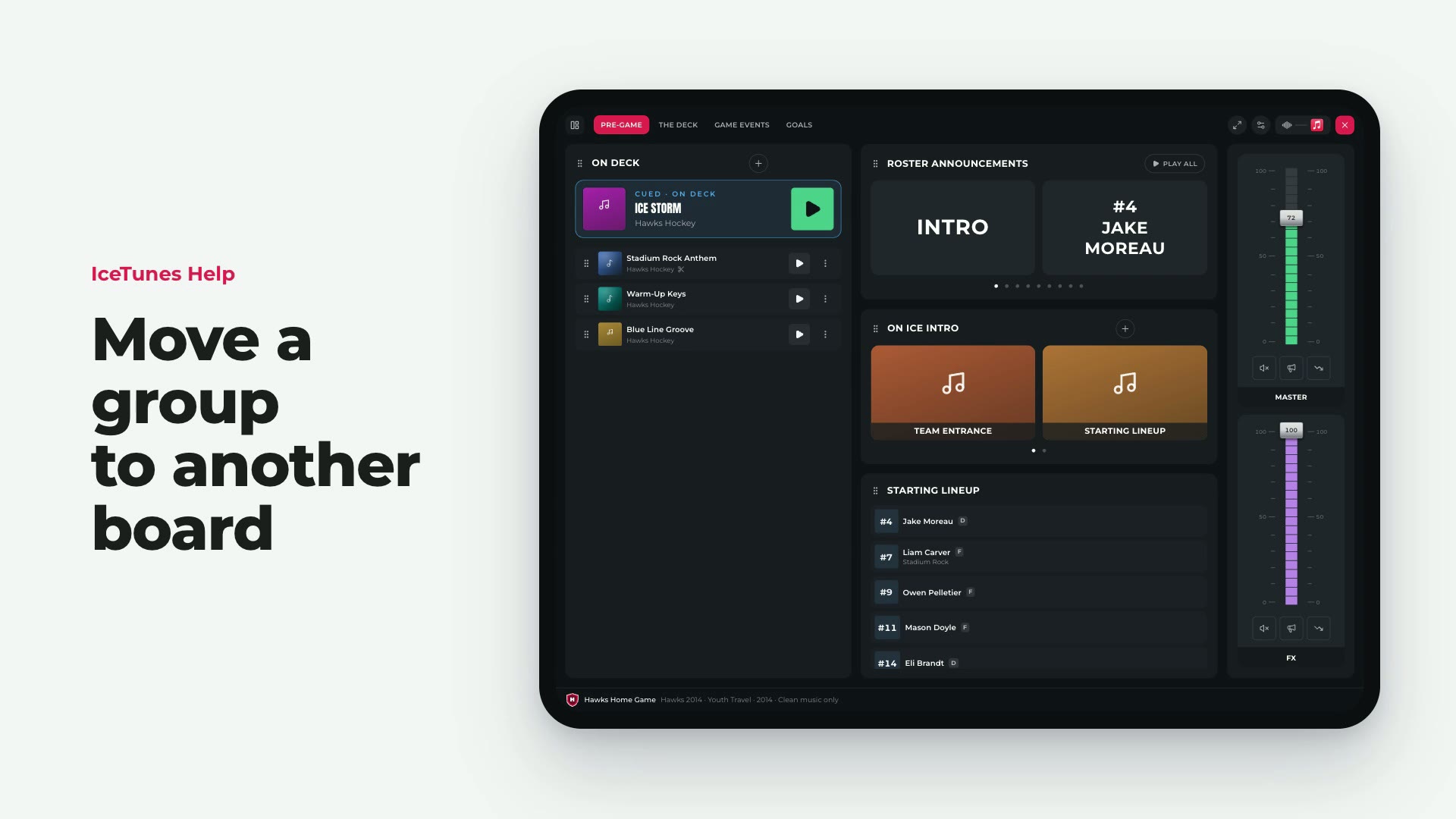
Move a group to another board
Move it, or give a board its own copy.
 0:53
Step 48
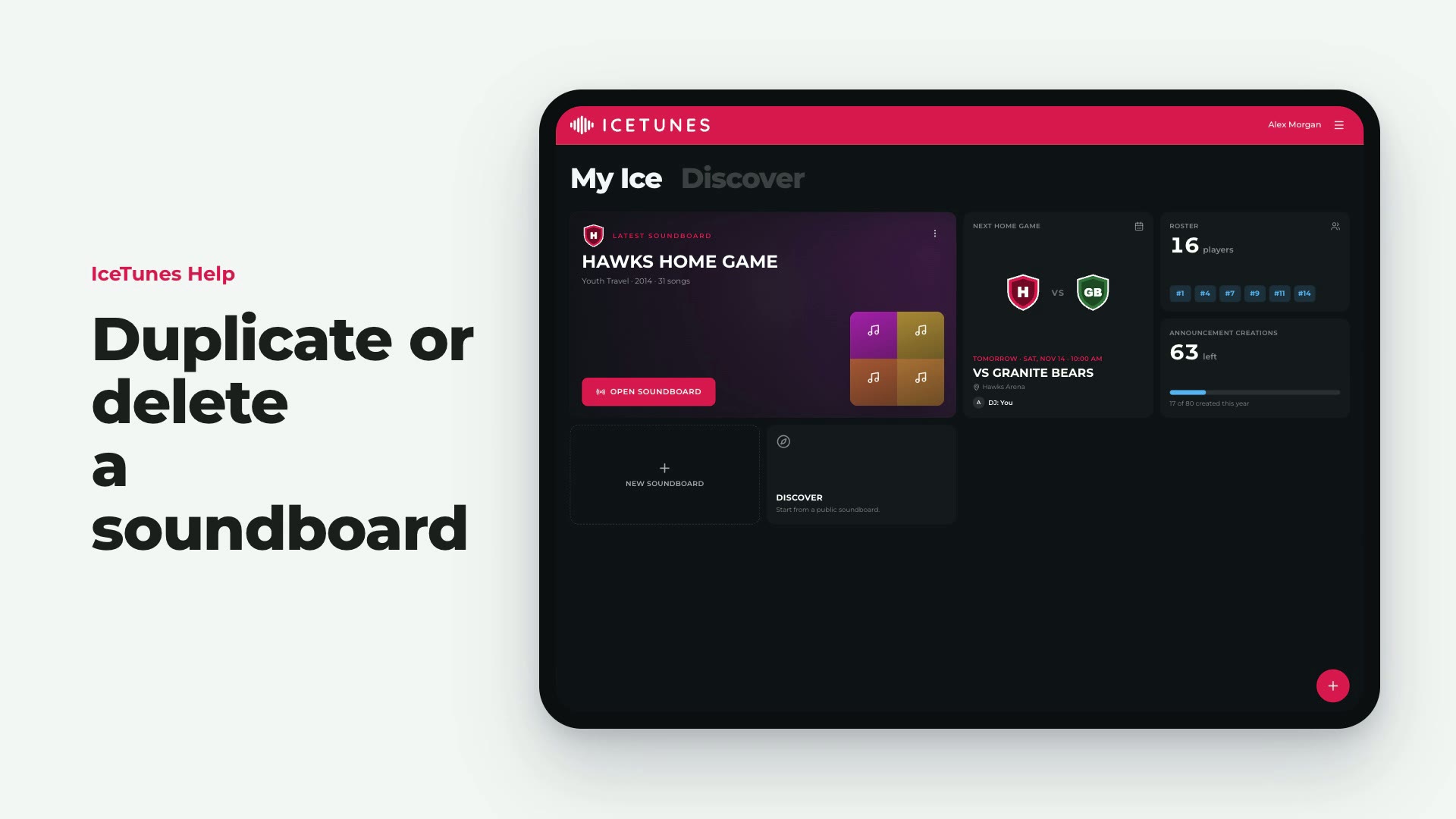
Duplicate or delete a soundboard
Copy it whole, or remove it.
 0:49
Step 49
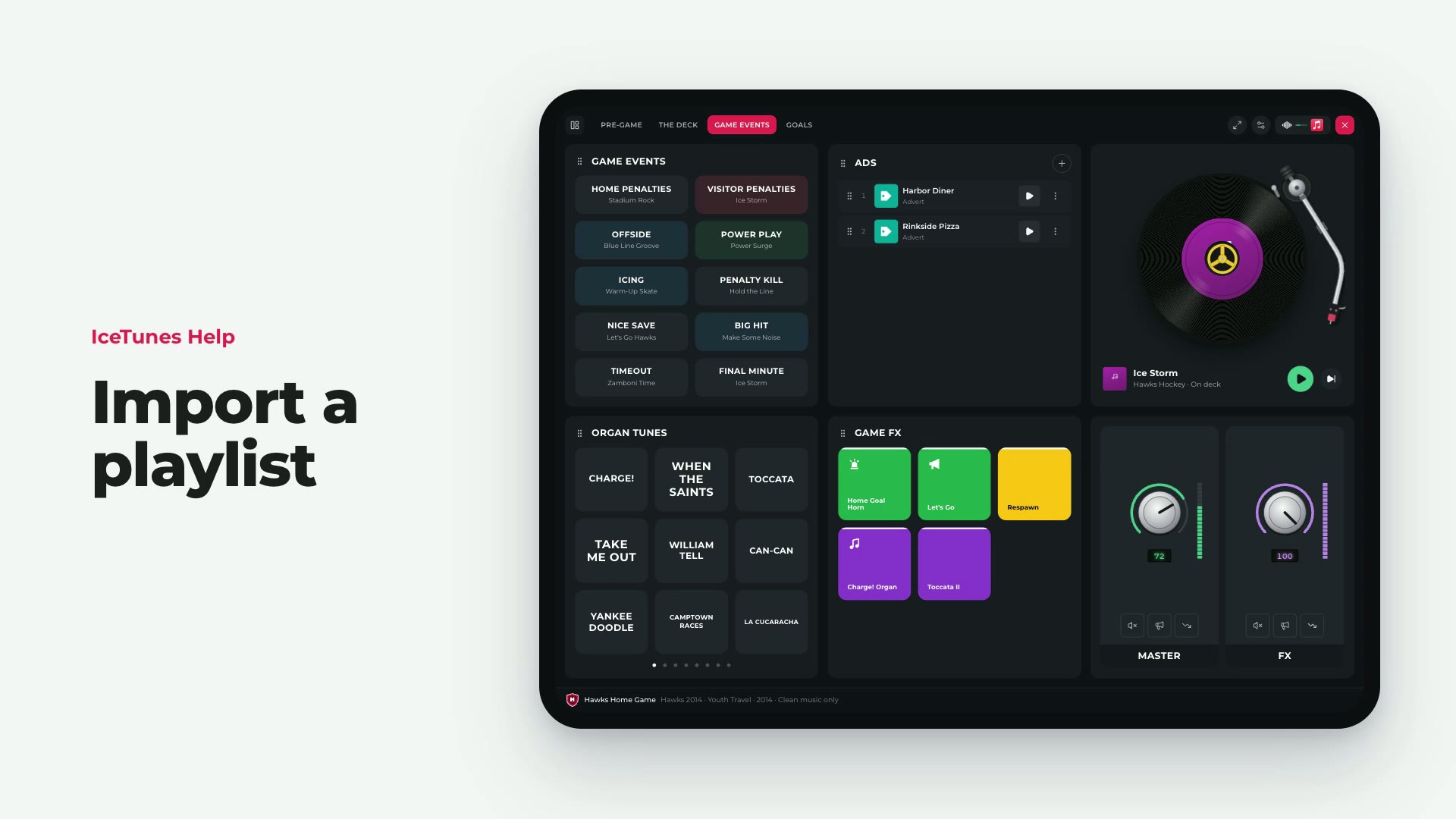
Import a playlist
Bring in a playlist you already have.
 1:44
Step 52
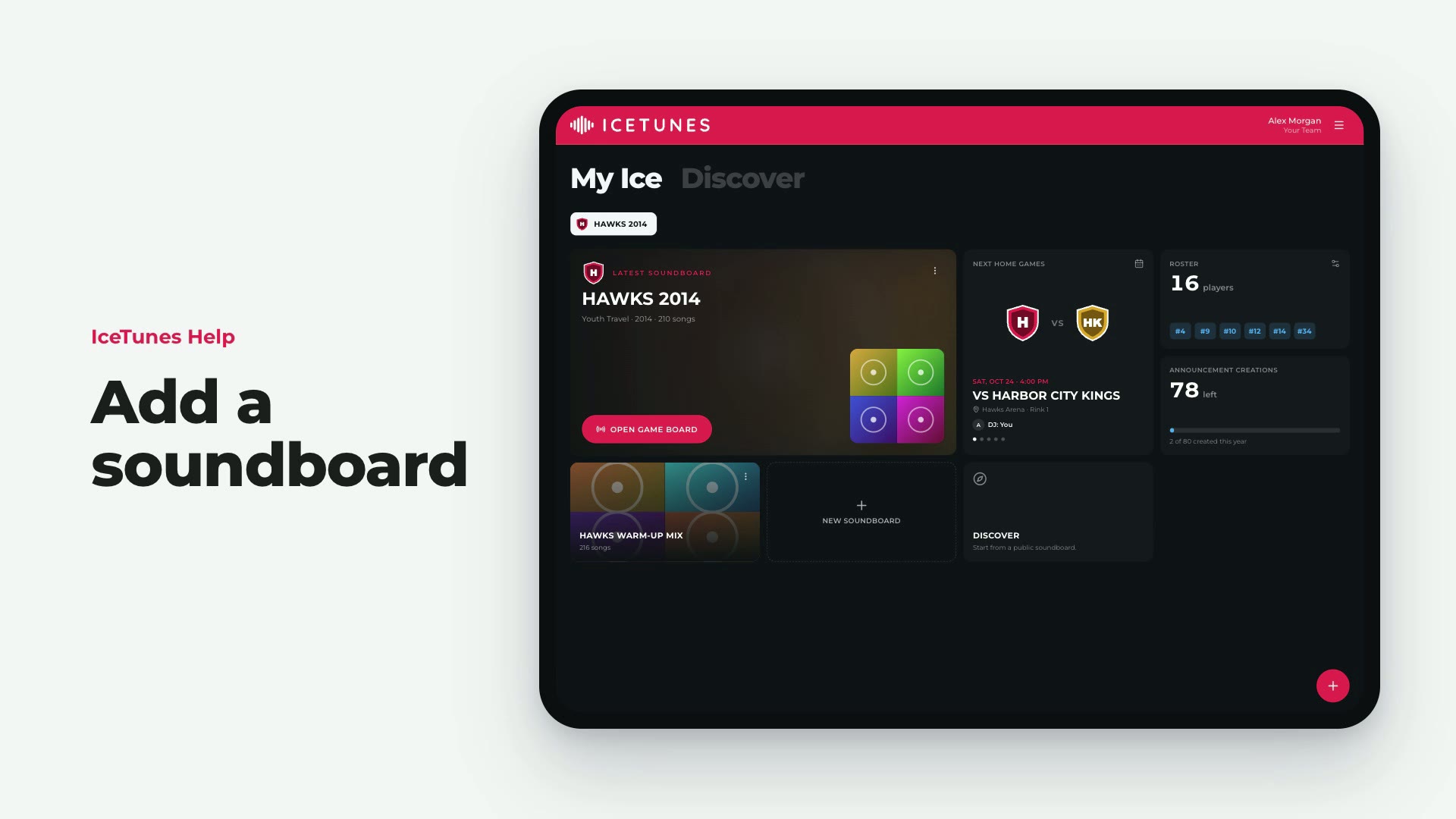
Add a soundboard
Another soundboard, for another game or team.
Game night
Run the rink with one tap.
 1:08
Step 9
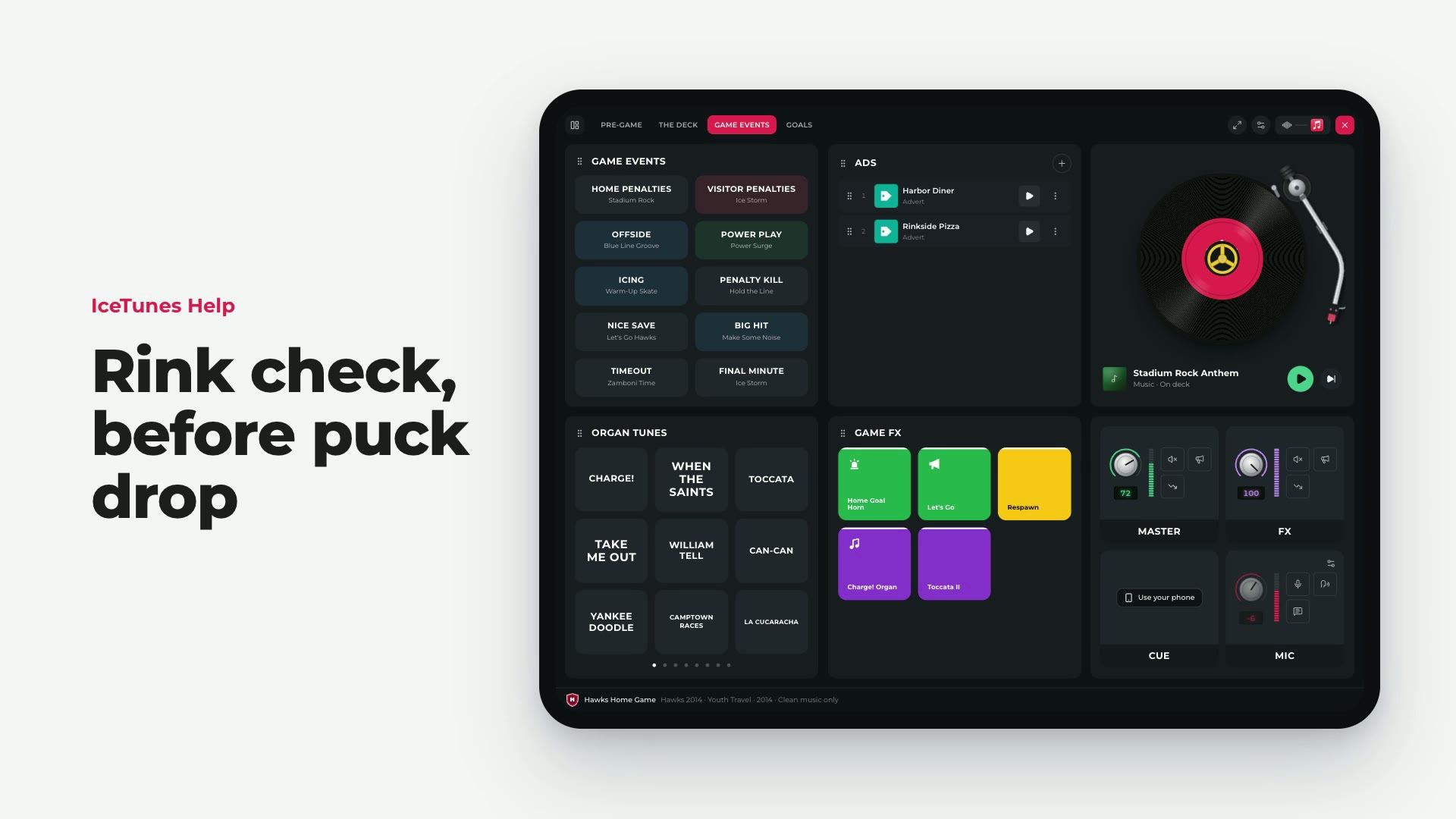
Rink check, before puck drop
Speakers, headphones, mic and Do Not Disturb.
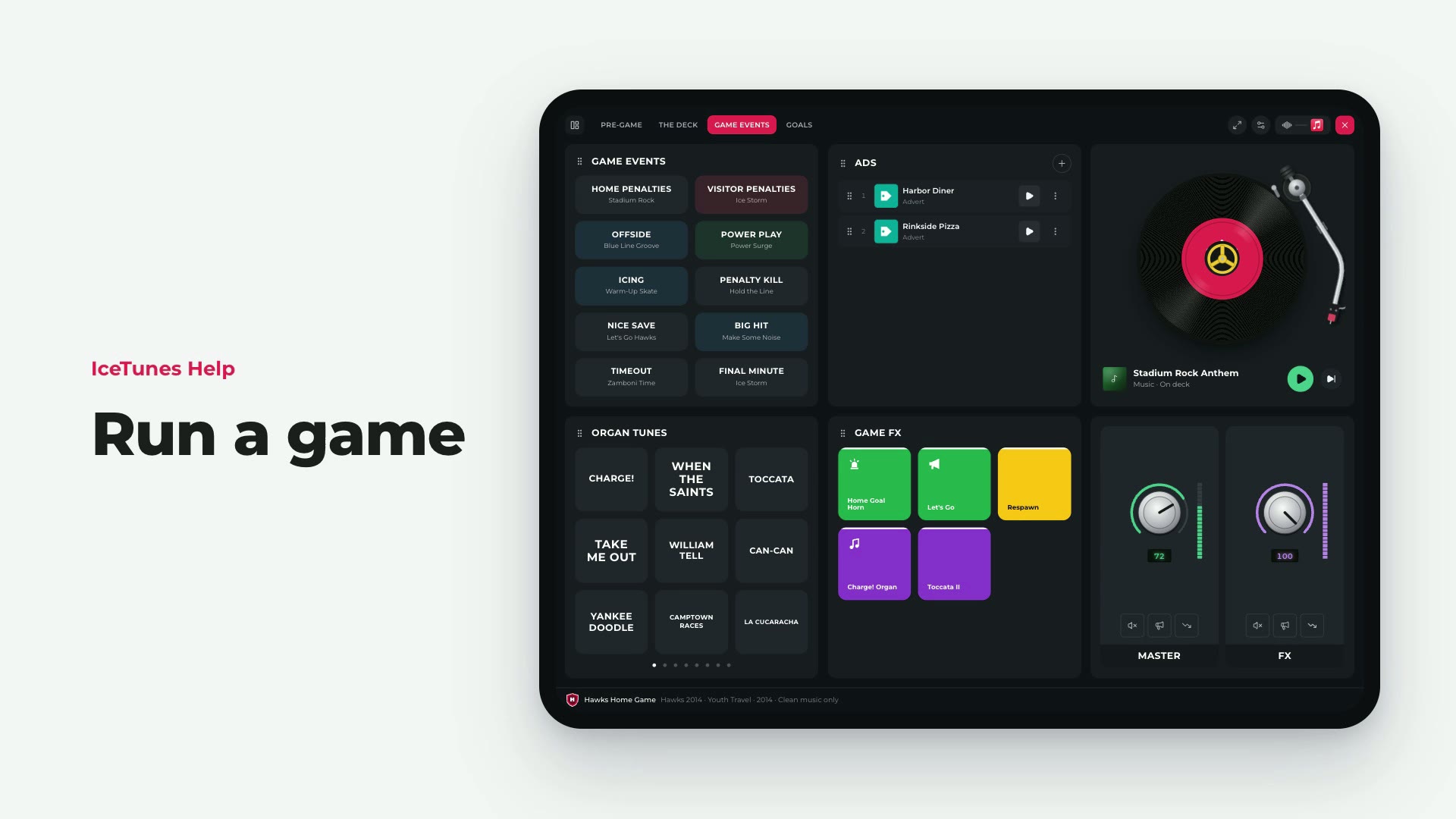 1:01
Step 10
Run a game
Whistle to whistle, one tap at a time.
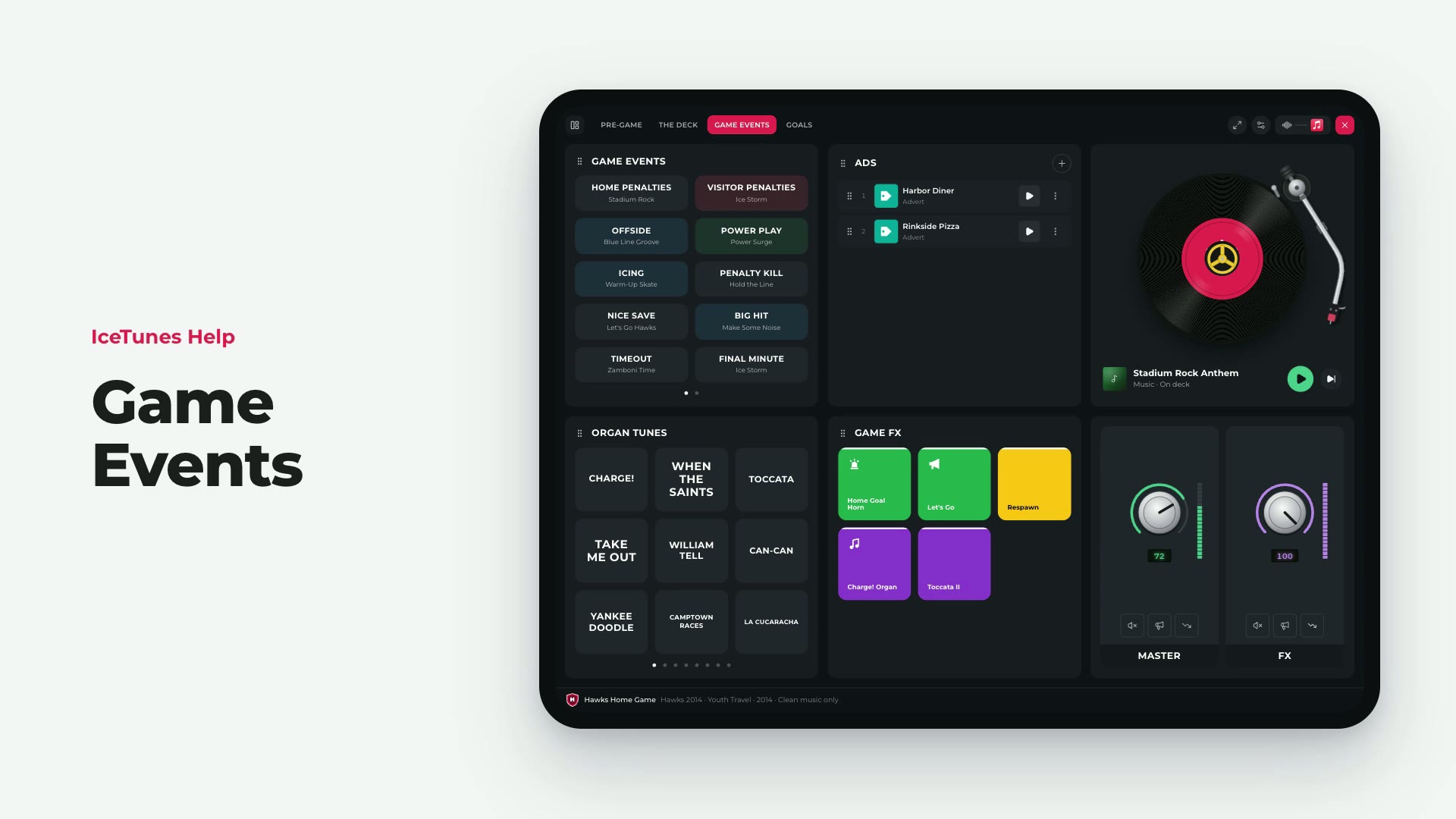 1:03
Step 14
Game Events
A tile for every moment.
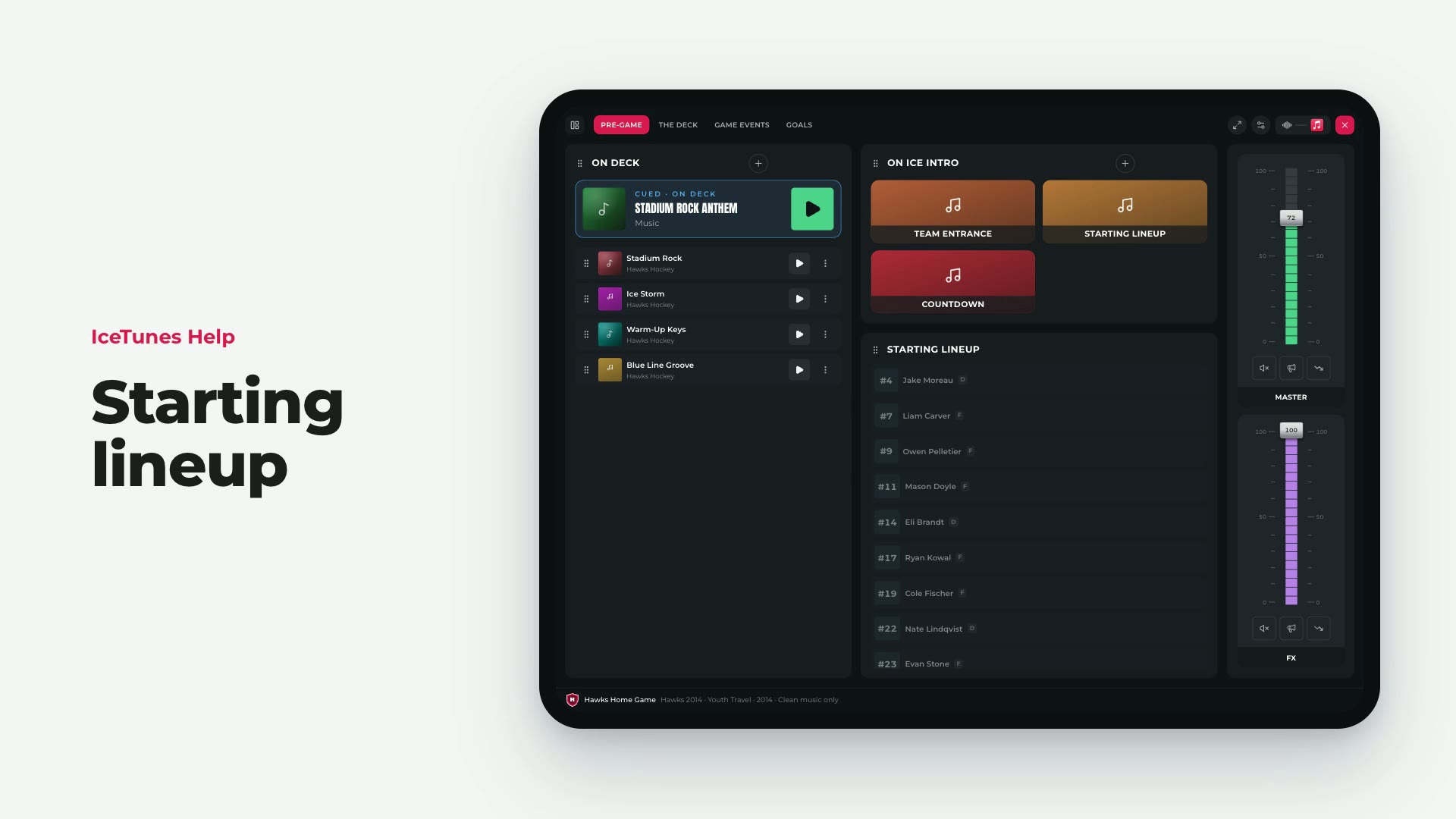 1:18
Step 19
Starting lineup
Every player called, in turn.
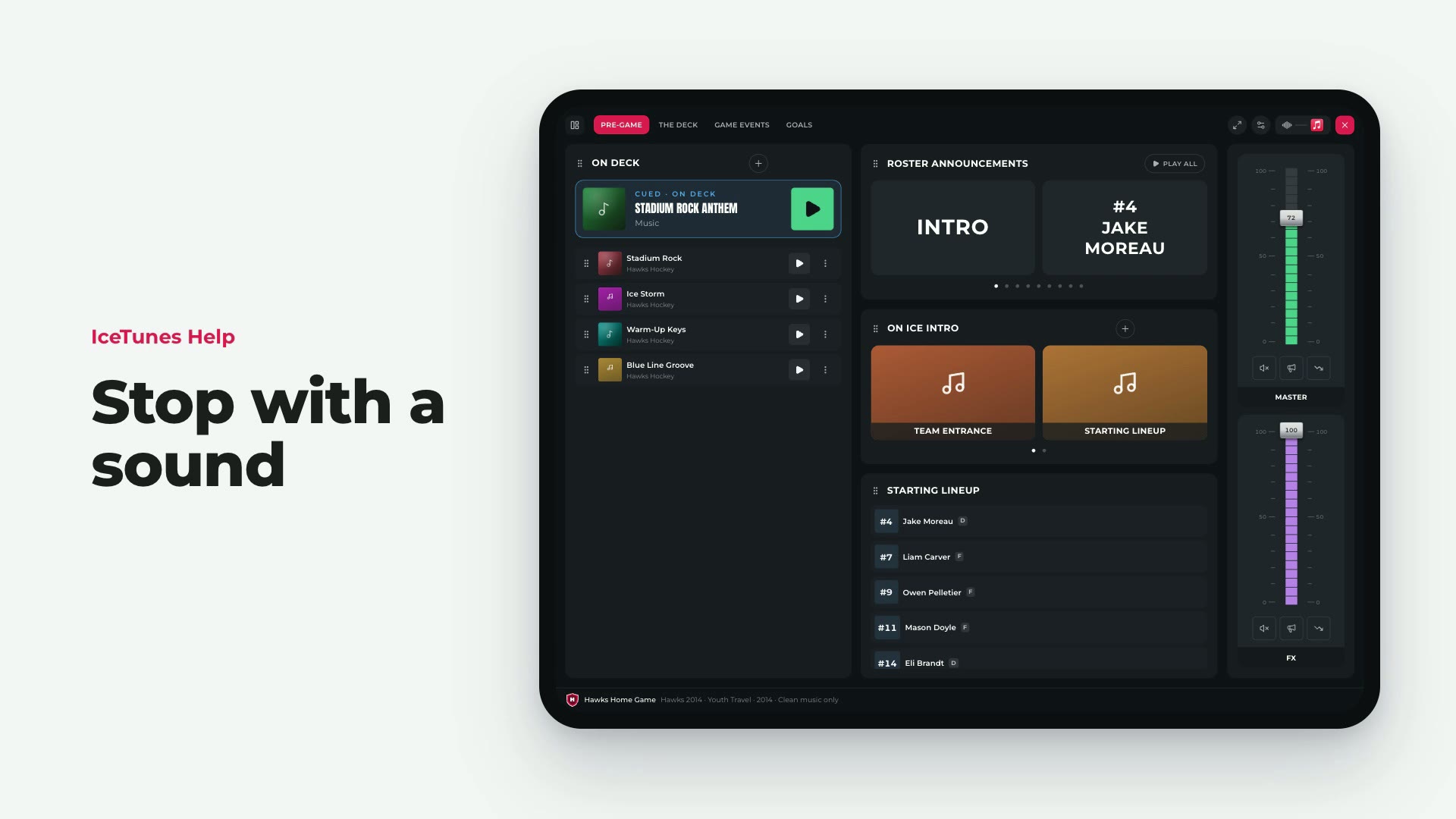 0:55
Step 23
Stop with a sound
A stinger when play stops.
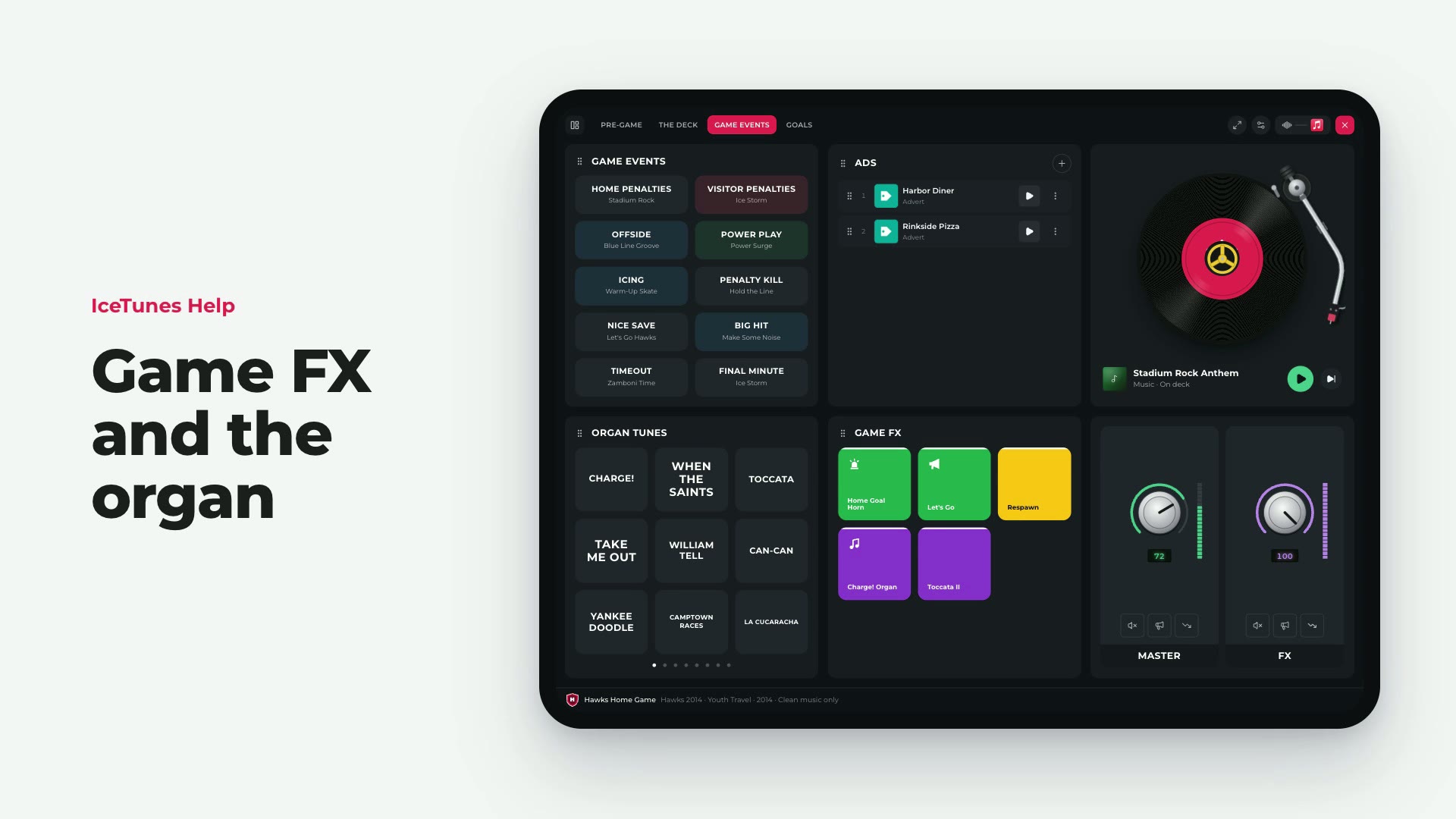 0:48
Step 24
Game FX and the organ
Horns, chants and organ, over the music.
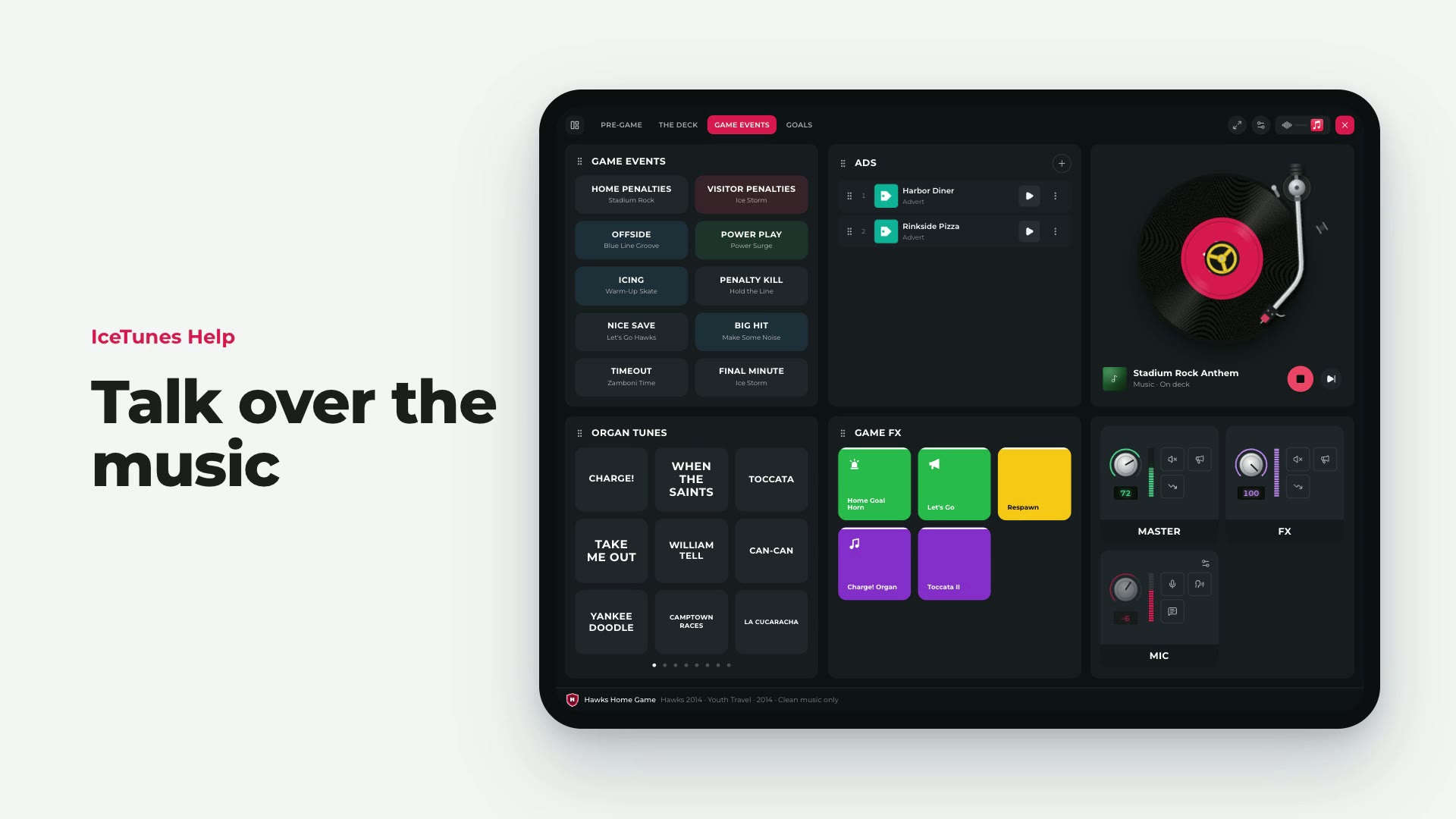 0:37
Step 26
Talk over the music
The mic on, the music down.
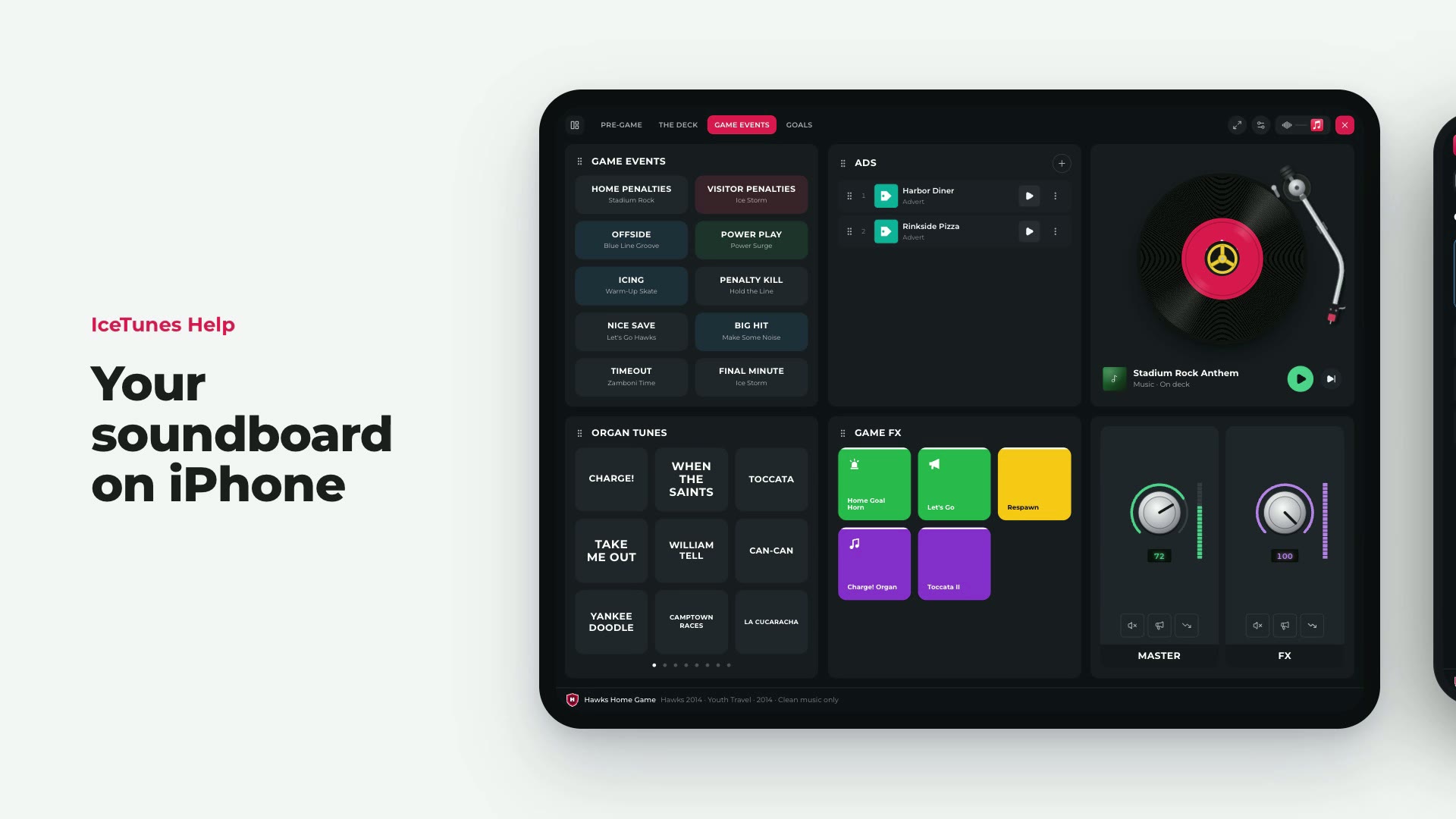 0:40
Step 34
Your soundboard on iPhone
The whole board, in your pocket.
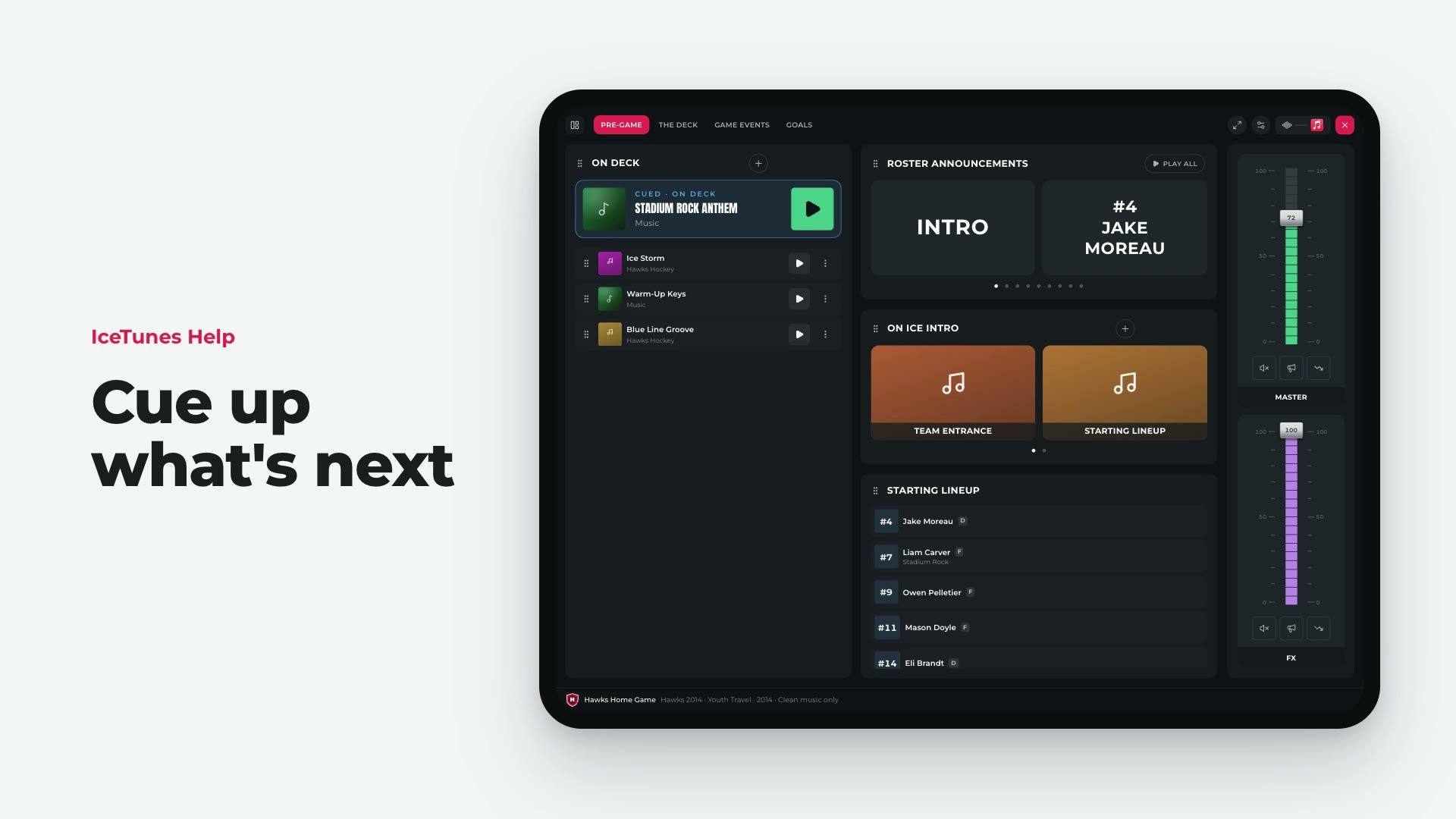 0:36
Step 36
Cue up what's next
Choose the next song, in one move.
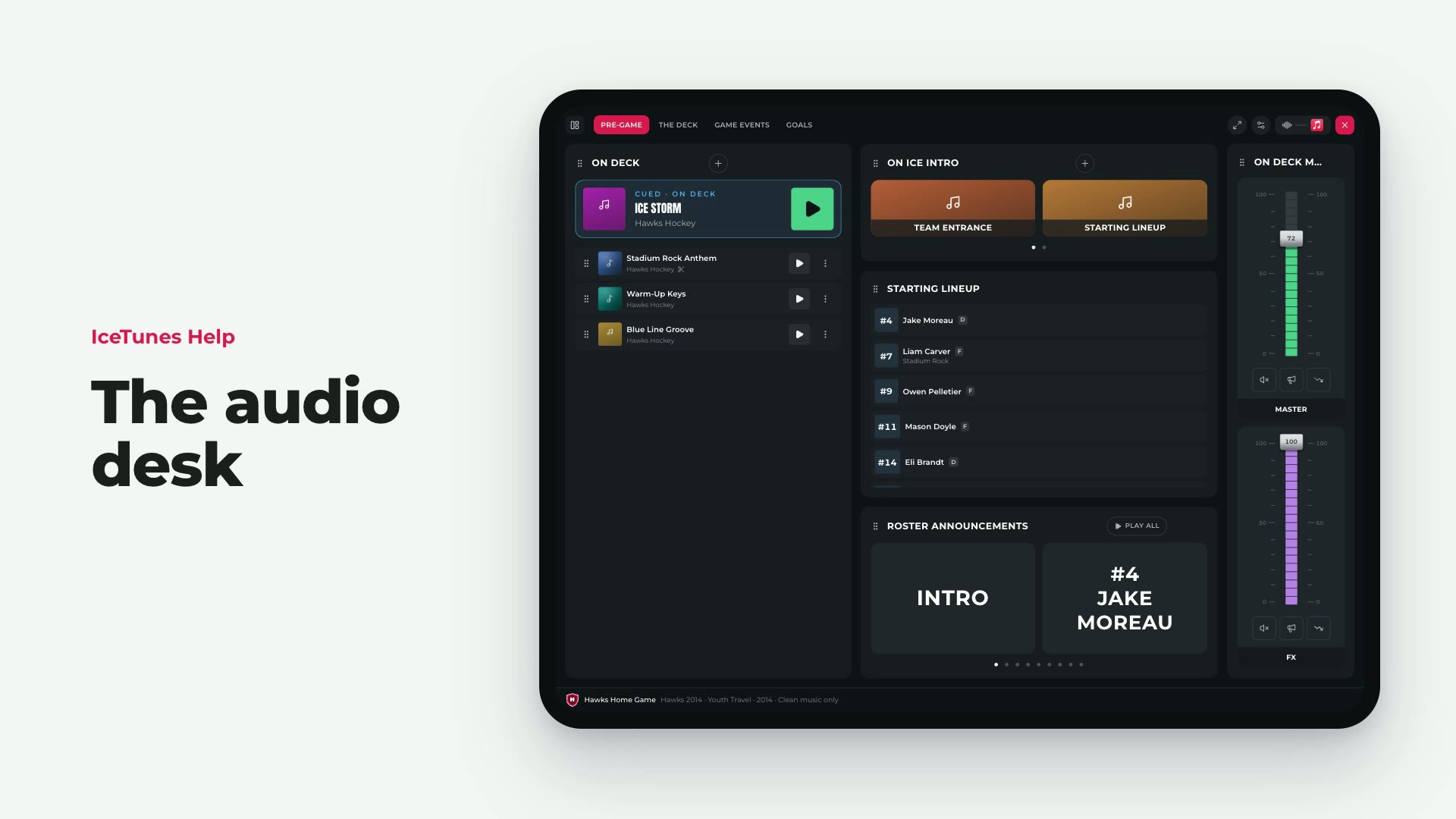 0:56
Step 37
The audio desk
Master, FX, Mute, Dim and Fade.
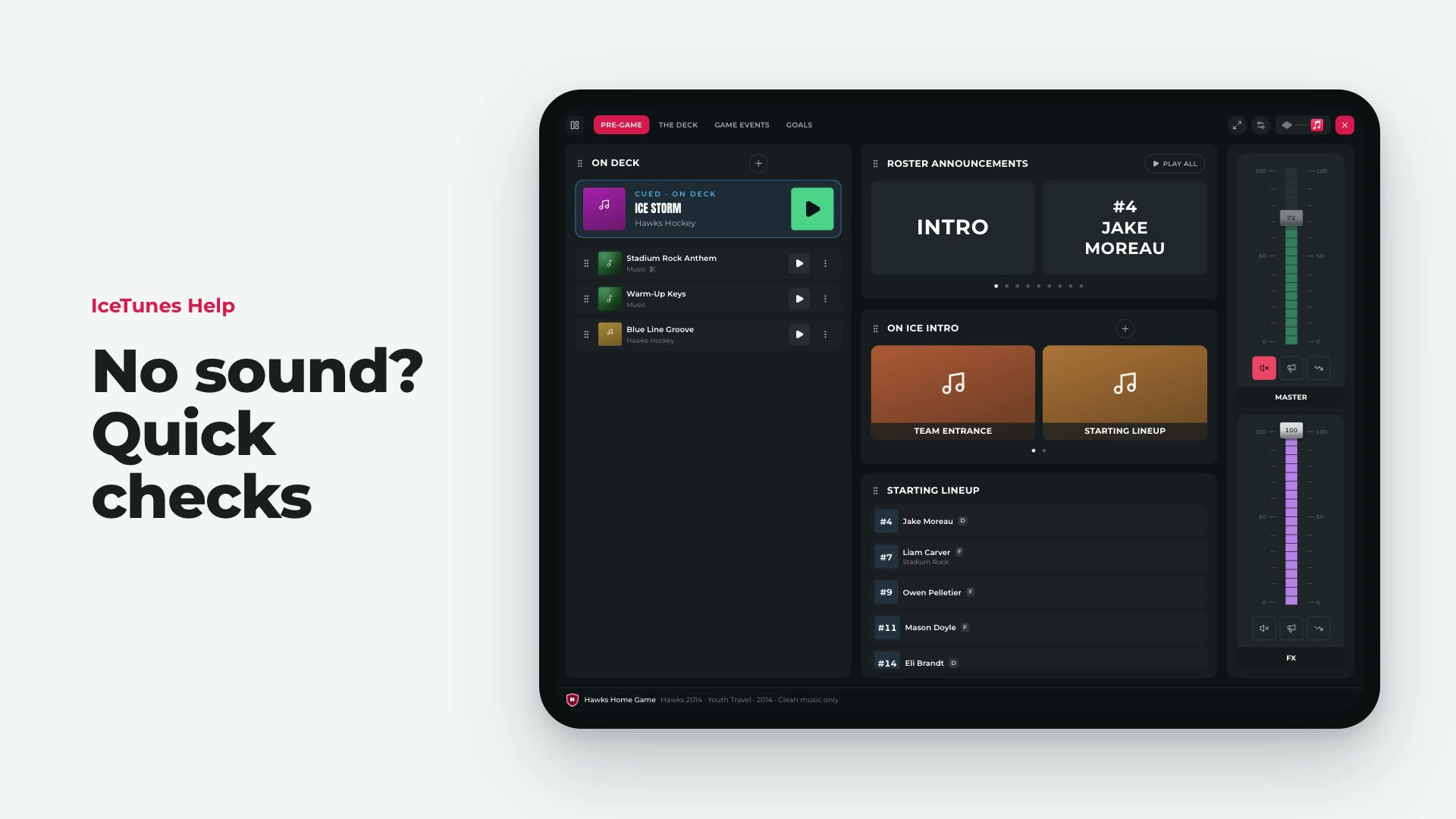 1:11
Step 39
No sound? Quick checks
When the rink can't hear you.
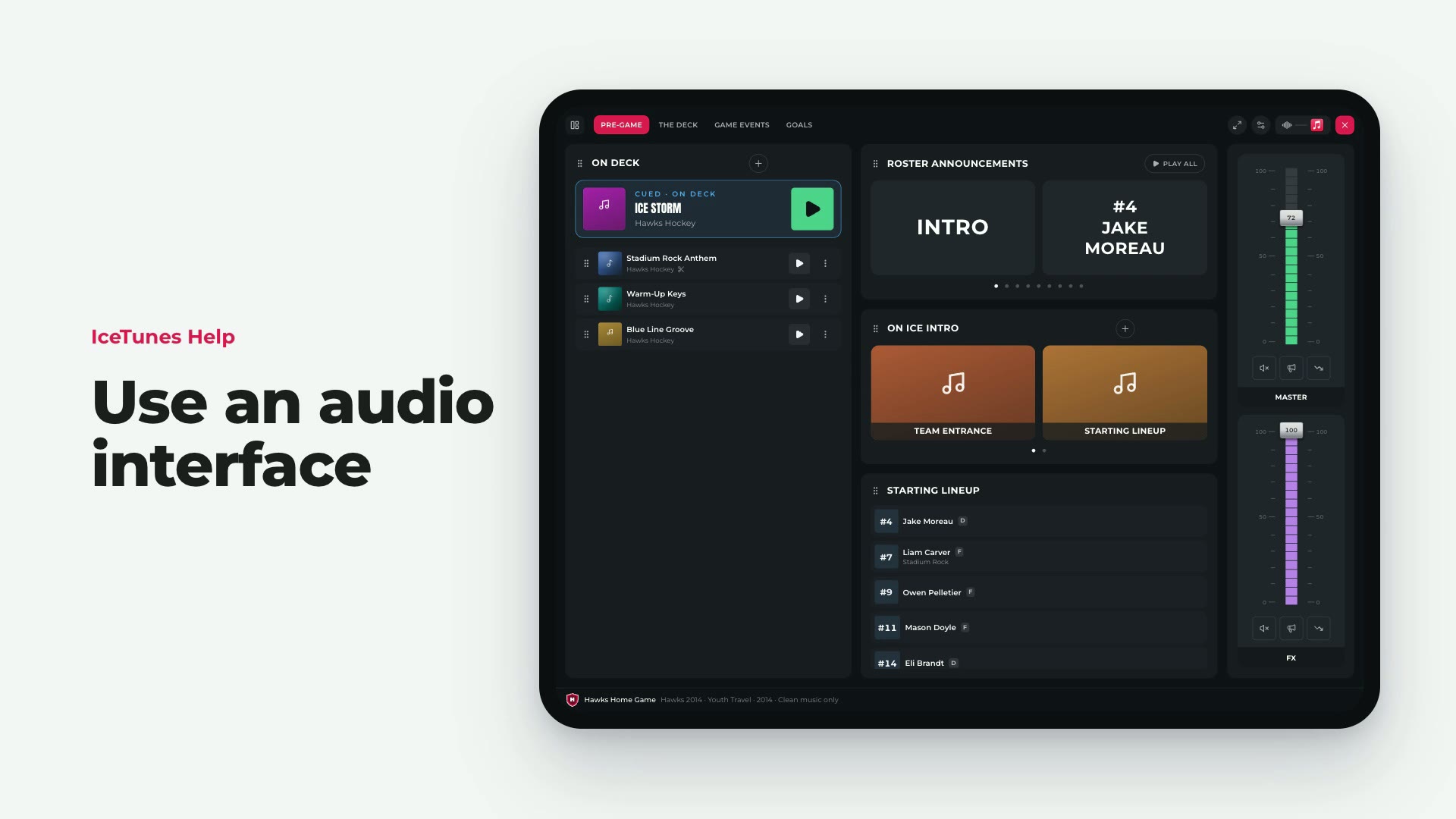 1:03
Step 40
Use an audio interface
PA, headphones and mic, on one box.
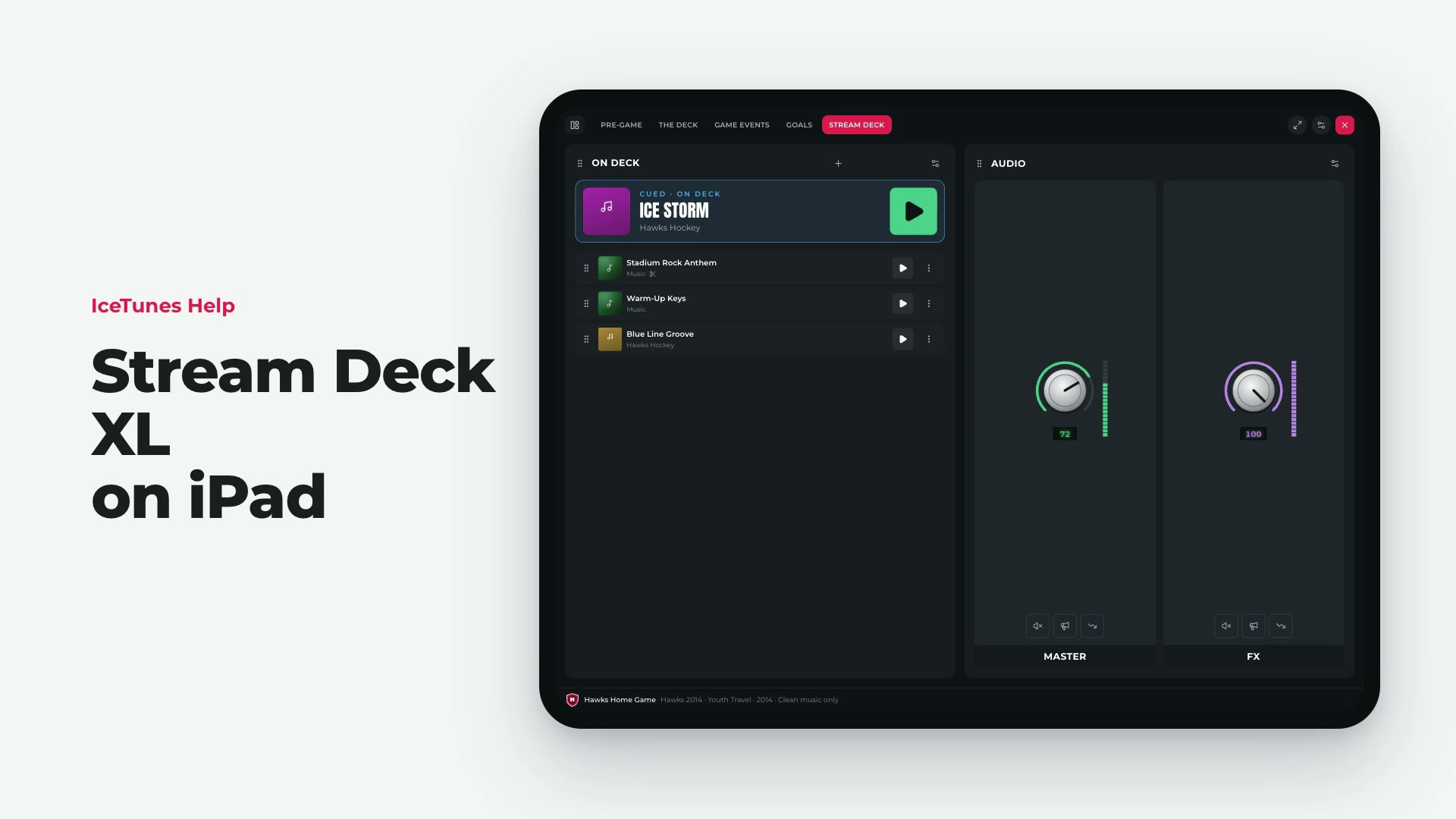 1:32
Step 44
Stream Deck XL on iPad
Plug a Stream Deck XL into the iPad and play the board from its keys.
 1:34
Step 45
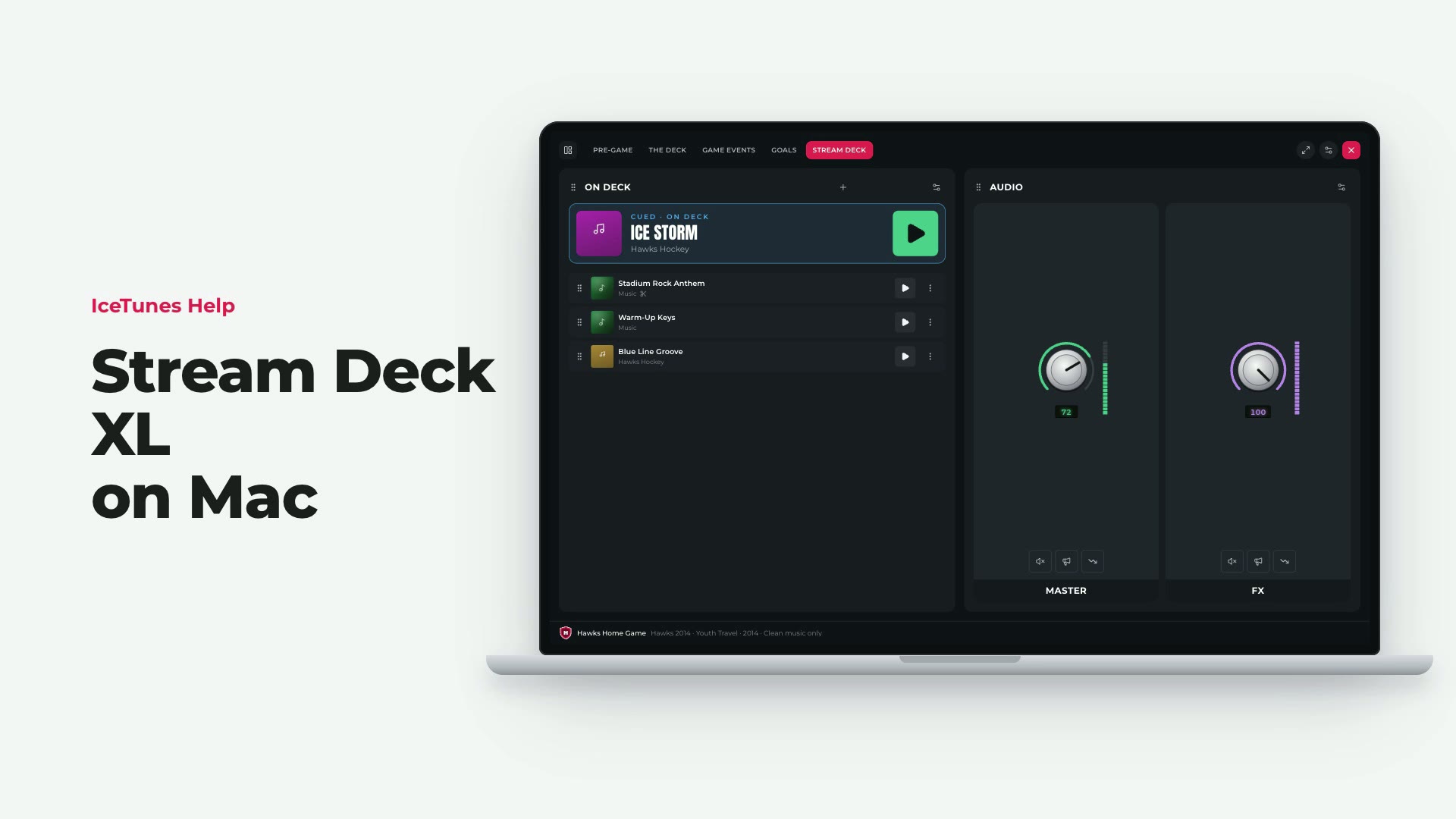
Stream Deck XL on Mac
Pair a Stream Deck XL on your Mac with the board, by code.
Your team
Rosters, phones and operators.
 1:01
Step 11
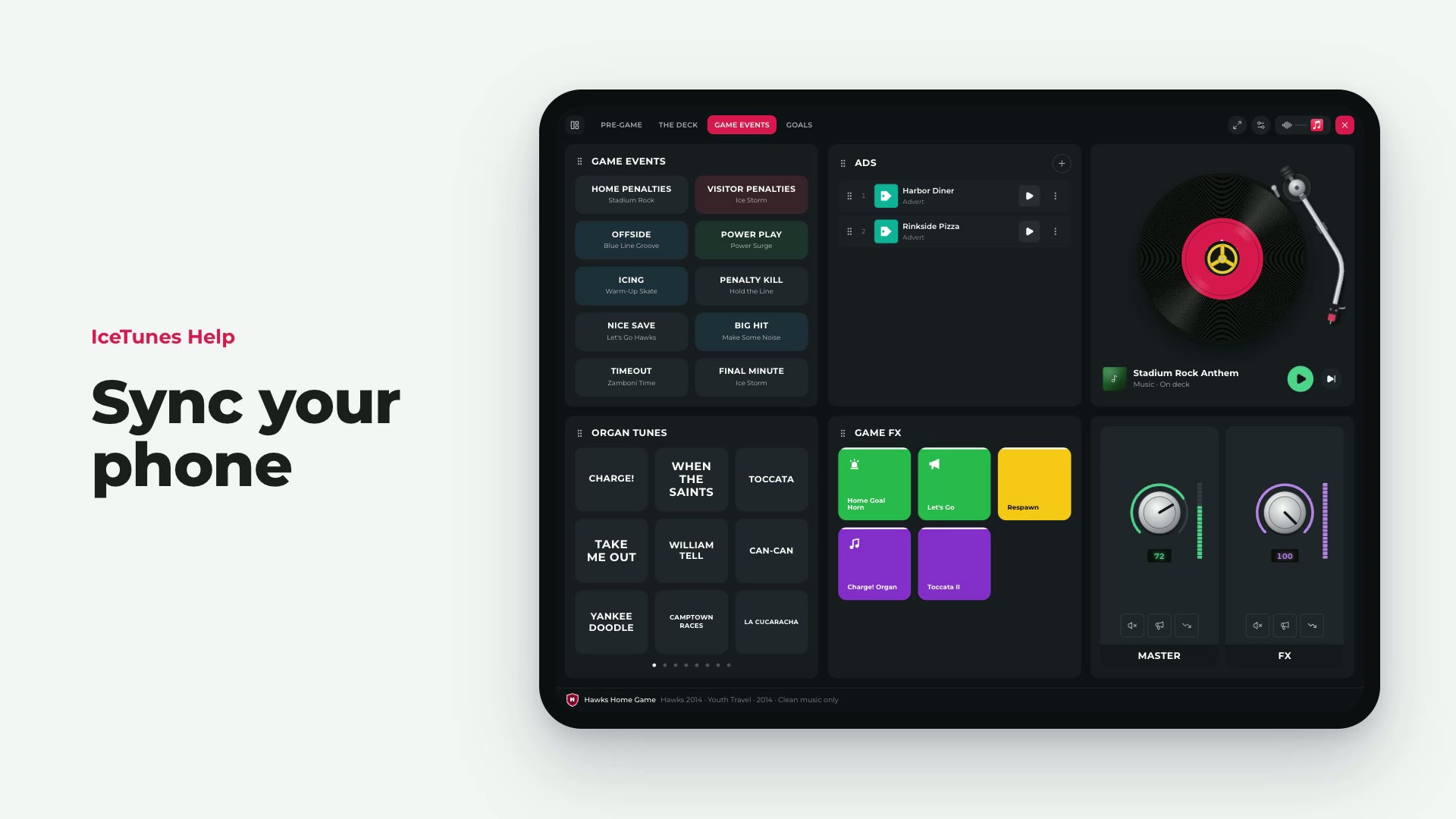
Sync your phone
Listen in, or run the board from the bench.
 0:56
Step 12
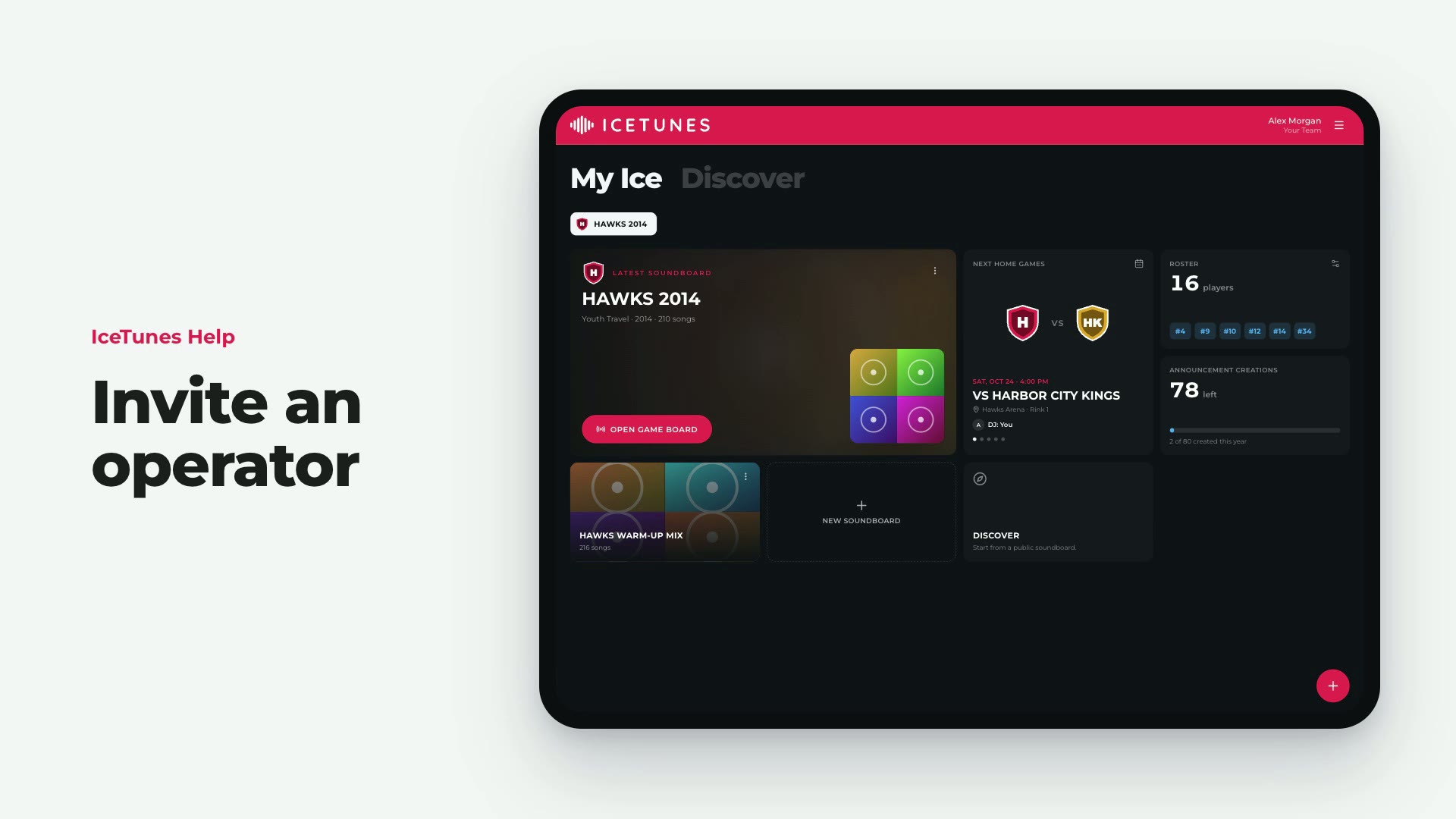
Invite an operator
Hand a team to someone you trust. Part of IceTunes Pro.
 1:03
Step 13
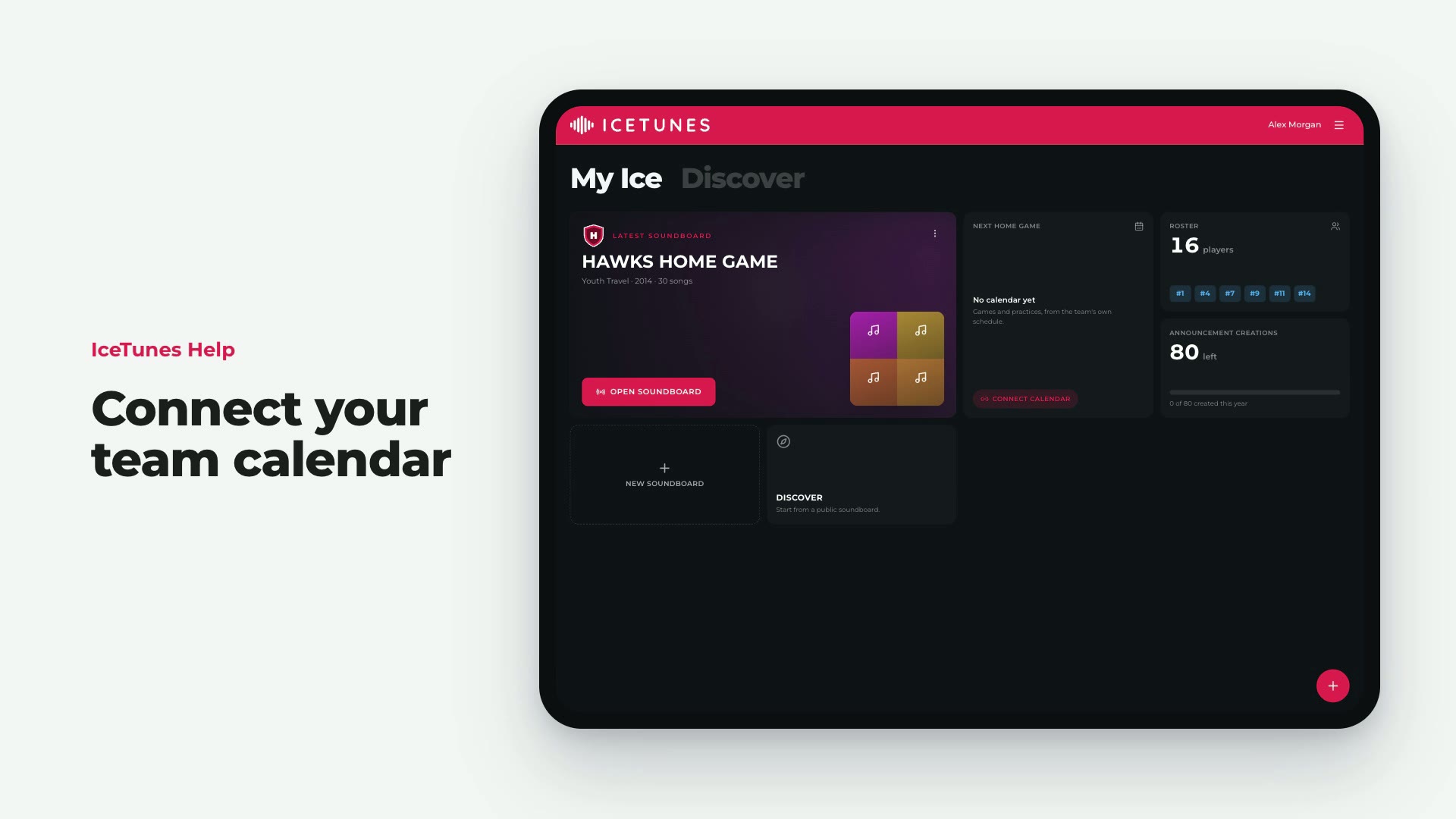
Connect your team calendar
Your schedule, always current.
 0:50
Step 20
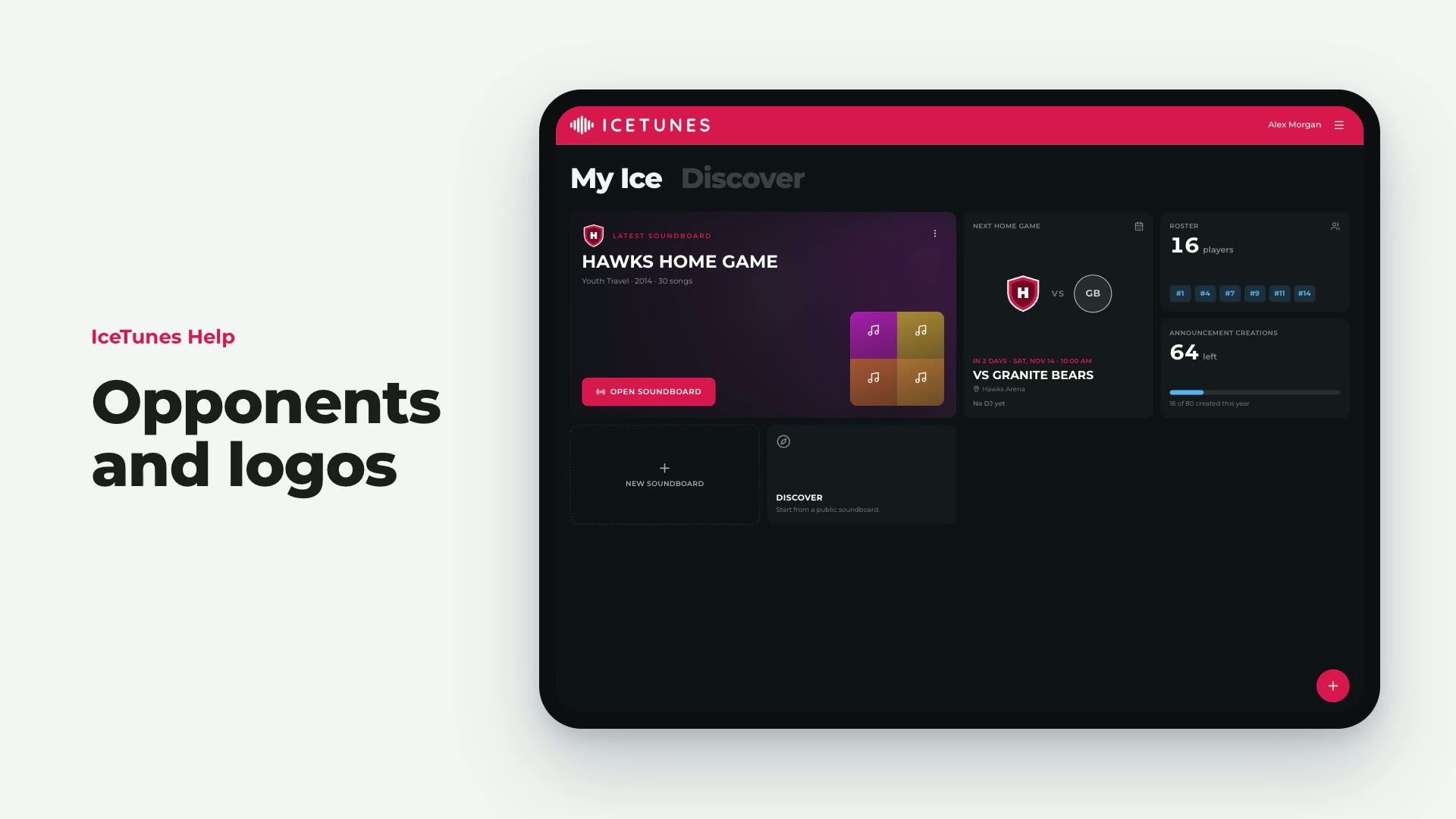
Opponents and logos
Your crest, and every team you play.
 0:52
Step 22
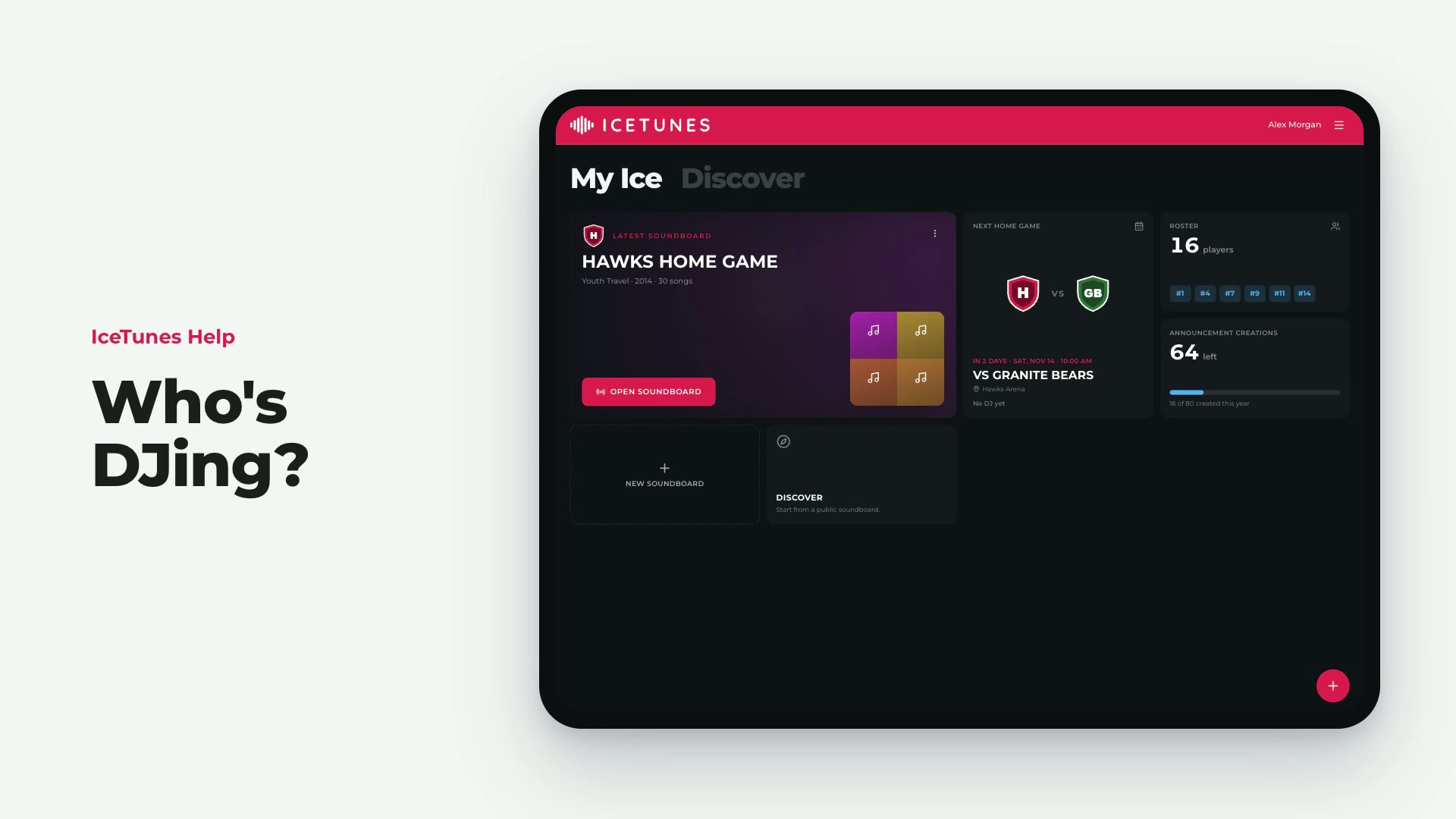
Who's DJing?
A DJ on every home game.
 0:59
Step 27
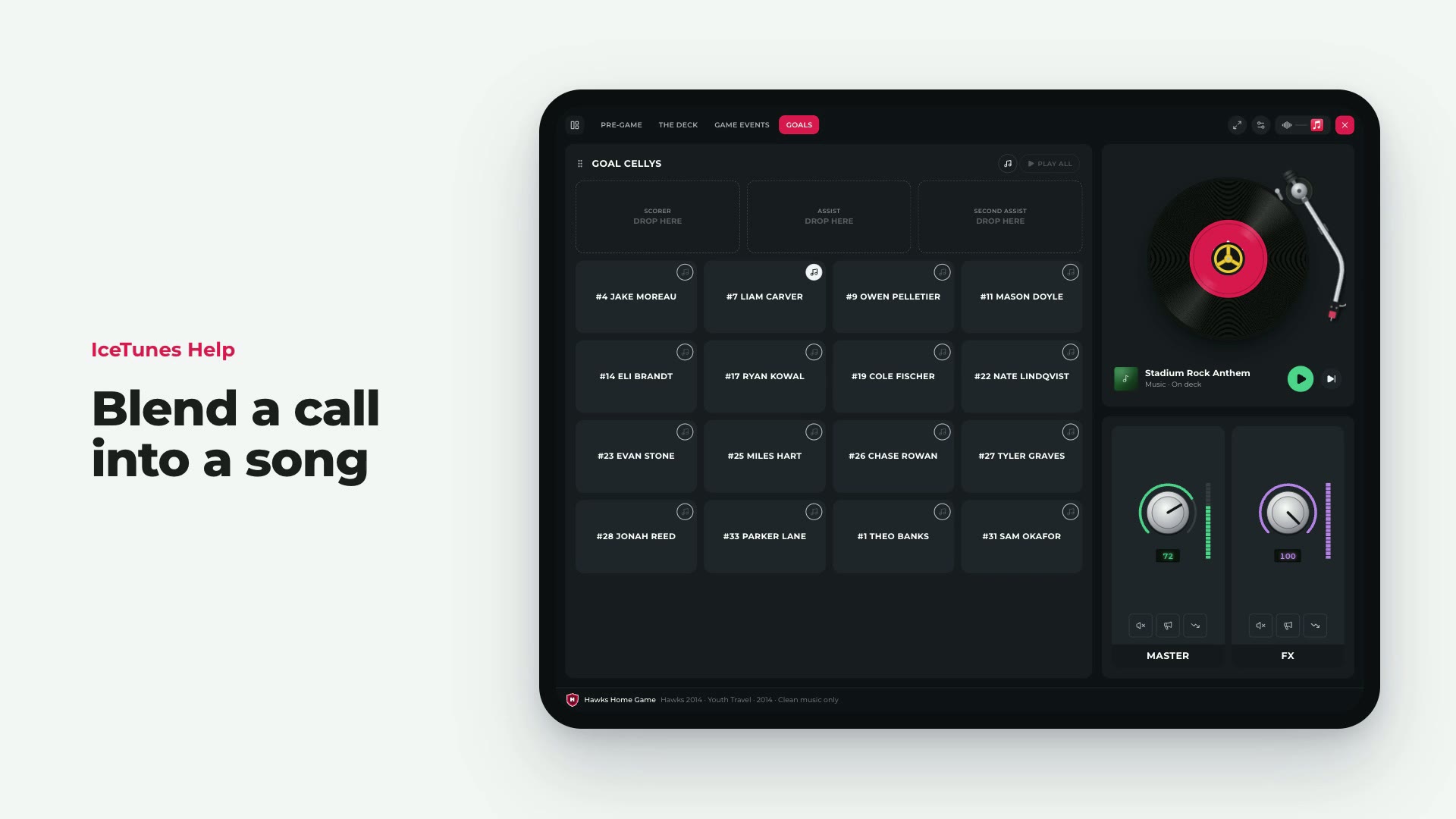
Blend a call into a song
Exactly where the song comes in.
 0:46
Step 31
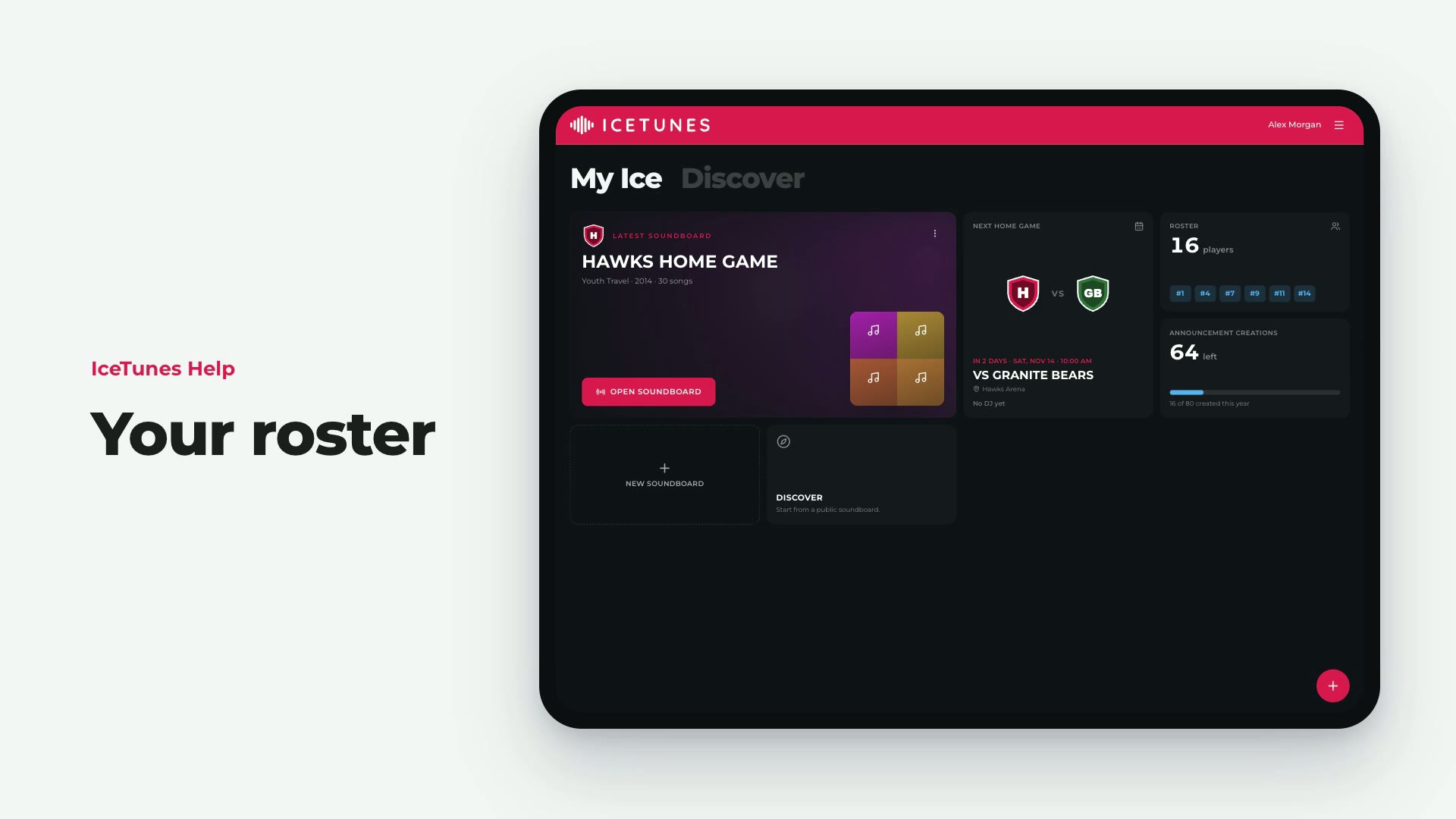
Your roster
Players, numbers and pictures.
 0:42
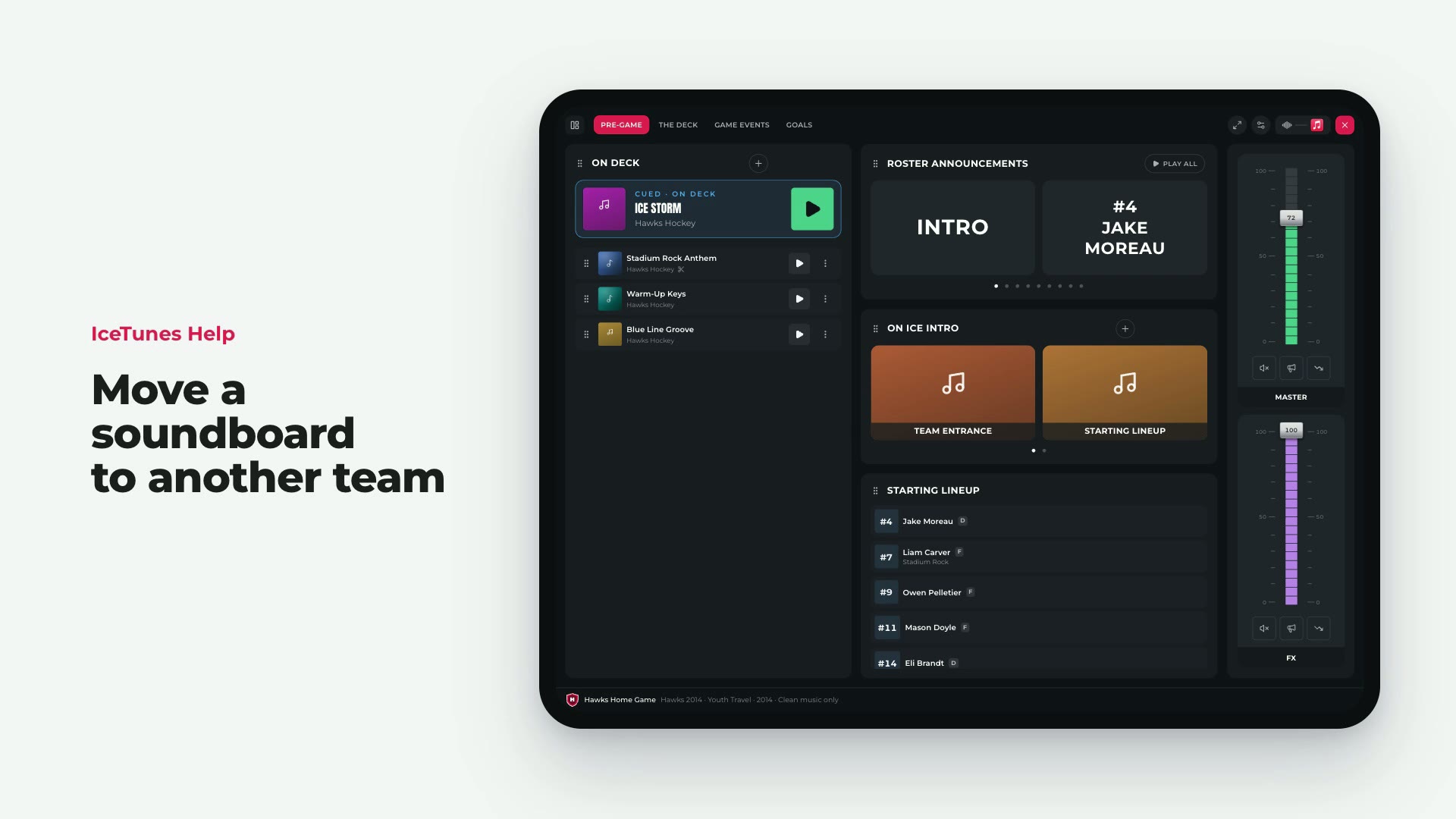
Step 42
Move a soundboard to another team
Its boards, tiles and songs go with it.
 0:44
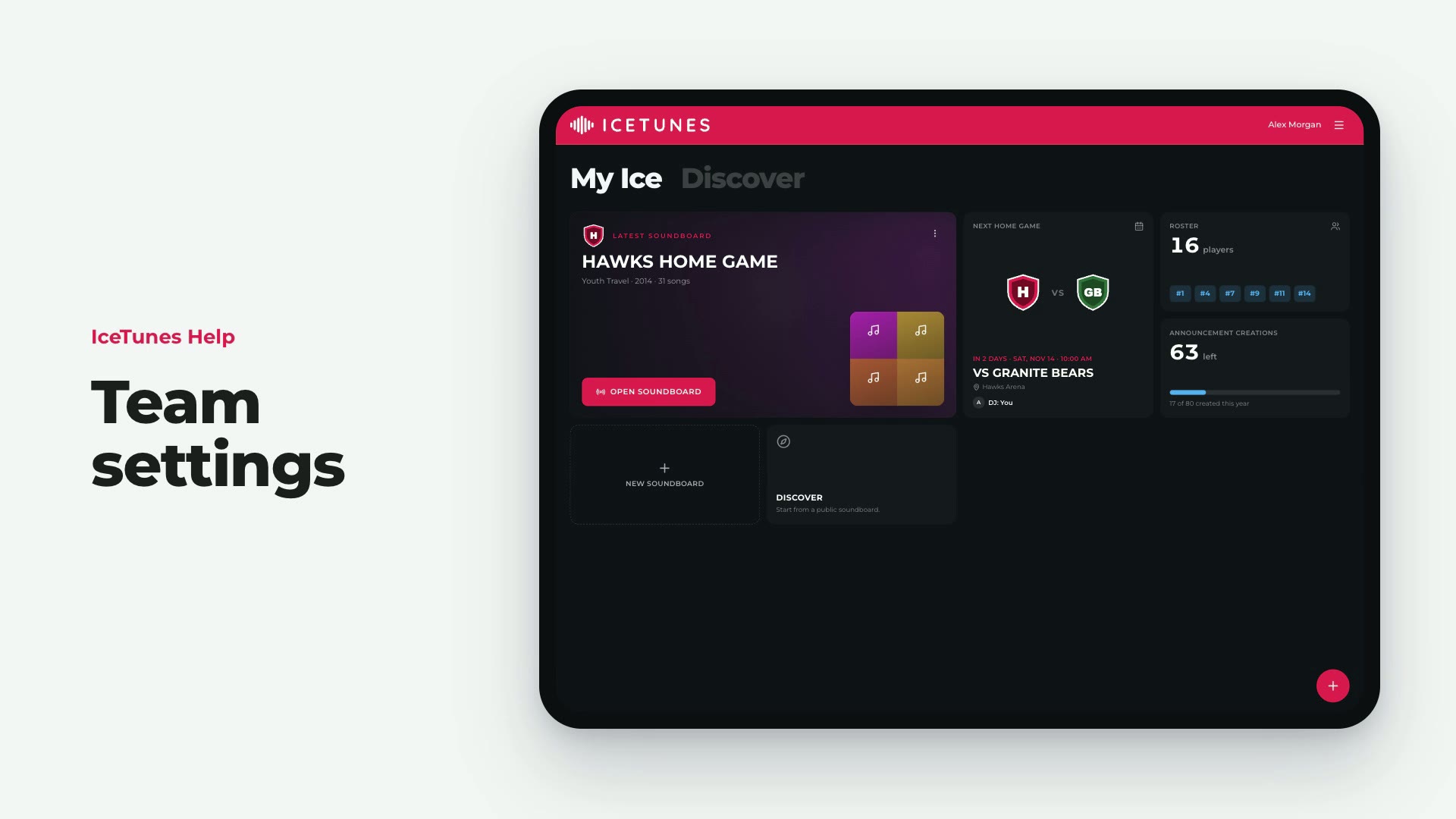
Step 43
Team settings
Name, display name, level, or delete.
 0:37
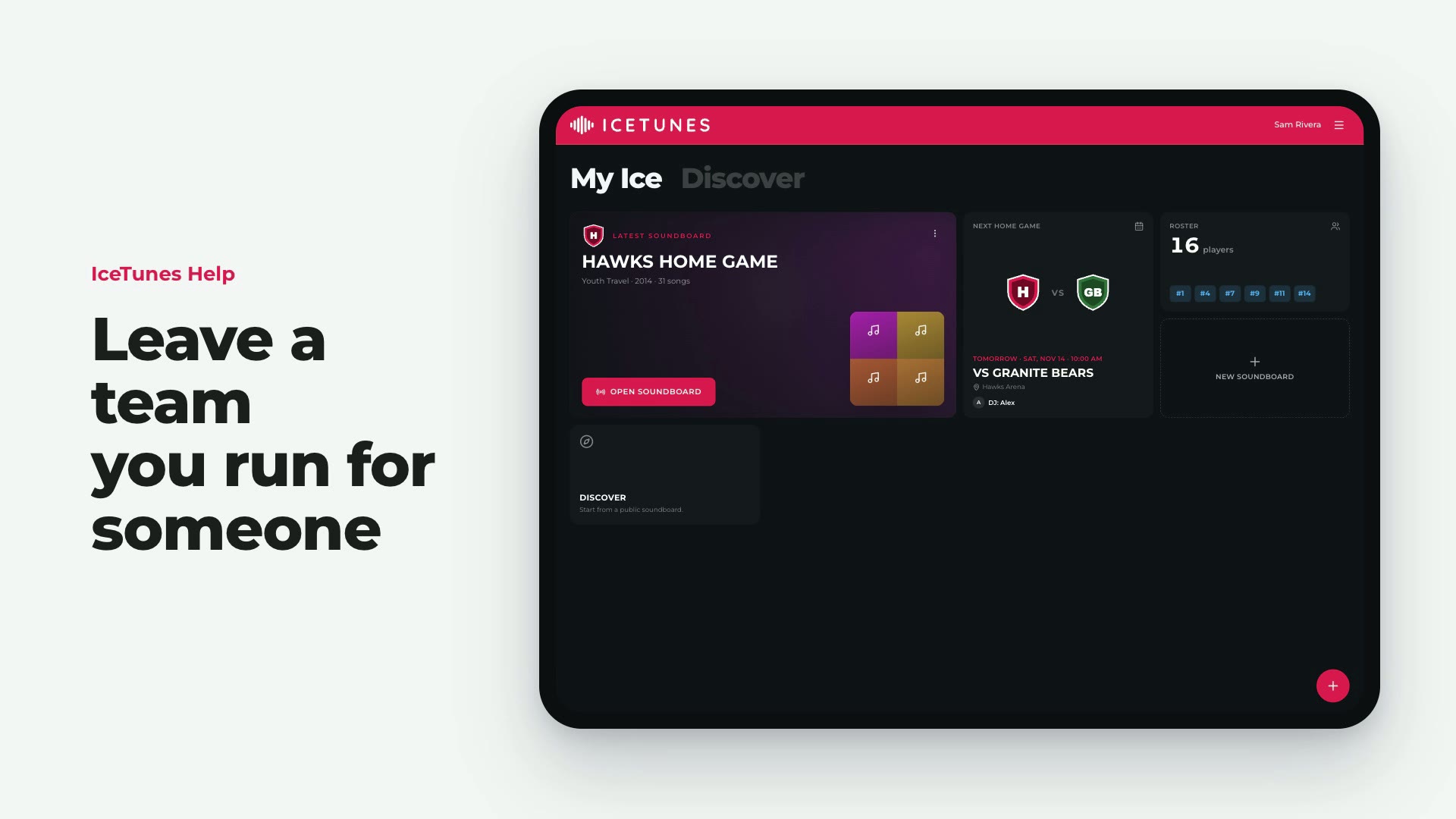
Step 51
Leave a team you run for someone
Stop running someone else's teams.
 0:59
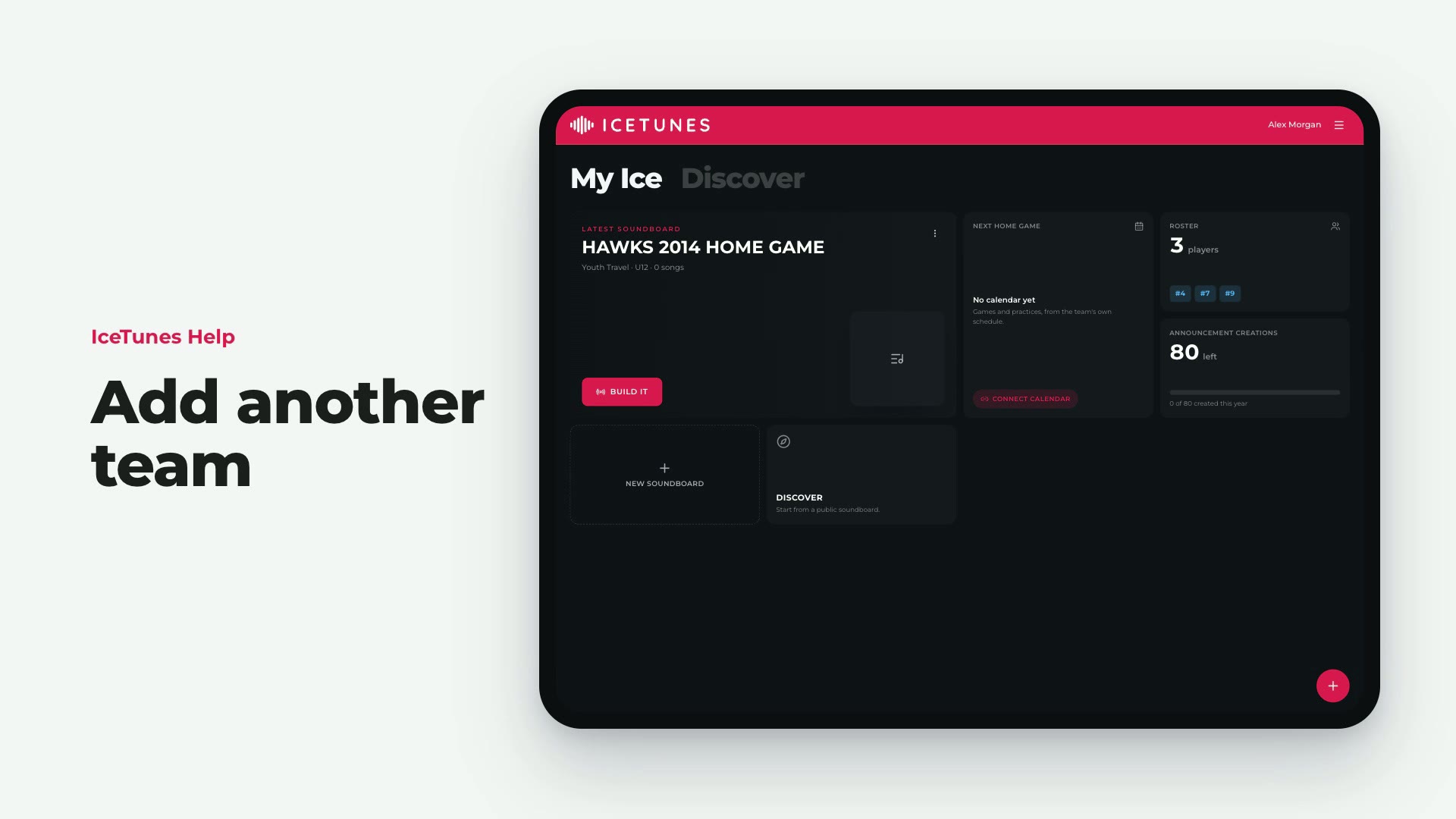
Step 53
Add another team
A second team, with Pro.
Something not working?
Quick fixes for sound, plans and your account.
Open Support